Find drawings and measure the real time spent on each project
Beyond working with entities and maps, DWGExplorer adds management tools that help you locate files, log usage and generate exportable reports.
A control layer that CAD plugins usually lack
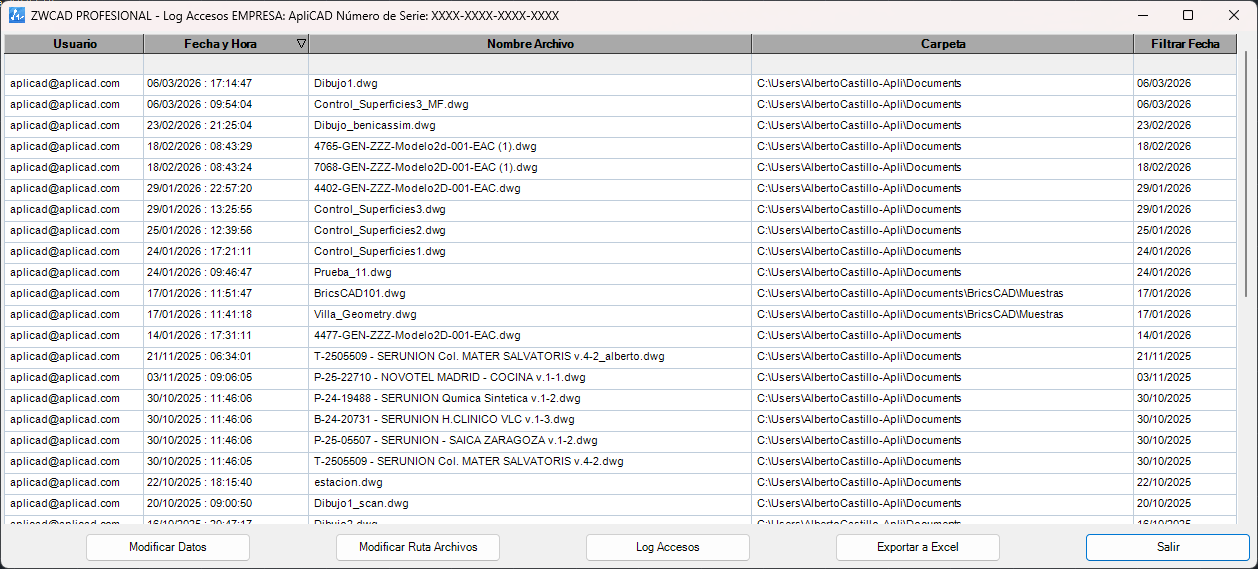
Find files
Scan a local or network path and sort DWG files to quickly locate the right one.
Filter the list
Any column can be used as a filter to find the right drawing, even in large folder structures.
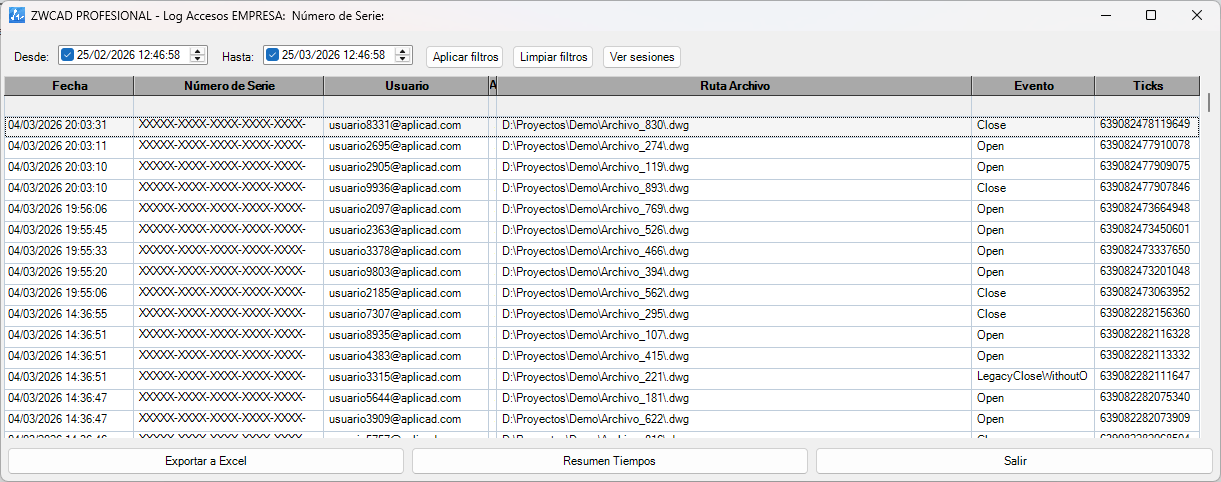
Time per active document
The system counts time on the file that actually has focus, even when several are open.
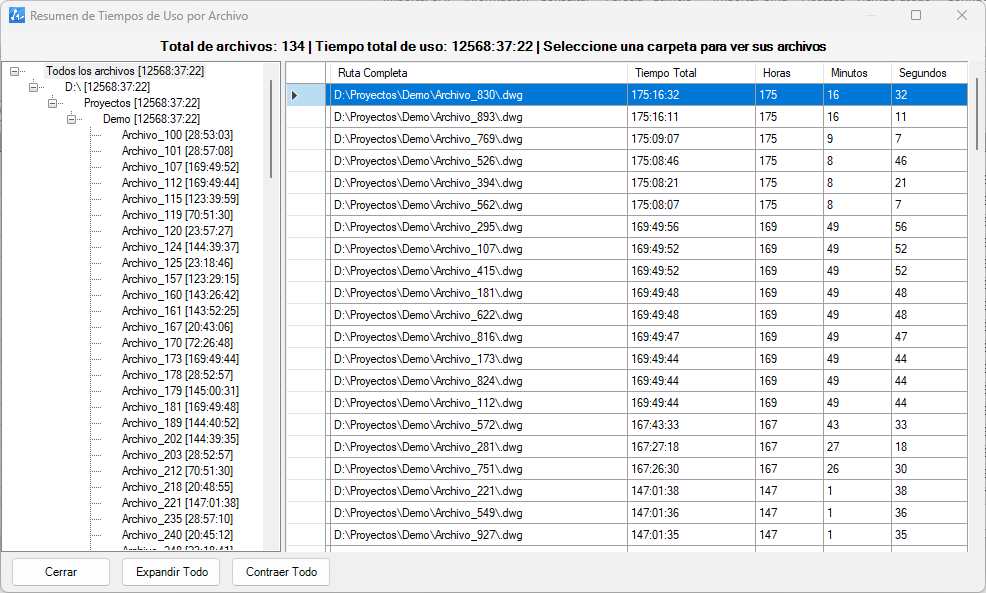
Summary per project
Group times by folder and project for cost estimates, productivity analysis or internal tracking.
Exportable reports
Export both file searches and usage times to Excel for further analysis.
User details
Associate name, company, email and CAD serial number with the generated records.
Built for firms that need control, not just visualization
Locate a specific DWG even in a large folder structure
The list is sorted by modification date and lets you double-click to open the file straight from the form.
Measure usage time with logic that works for multi-document work
DWGExplorer records openings, closings and focus changes to better approximate the real time spent on each drawing.
Group by project for an executive overview
Since drawings are usually organized in project folders, the summary gives a quick reading of the effort spent on each job.
How to use it in your firm's day-to-day work
Set the path
Define the folder or drive from which you want to locate project files.
Find the DWG
Filter and open the right drawing without browsing folders by hand.
Work with logging on
The system records usage based on which document actually has focus while you work.
Export and summarize
Review records or summarize times per project for later analysis.
Get answers to the key questions before you try DWGExplorer
Is the recorded time perfect?
It is not meant to be an absolute time-keeping system, but it greatly improves measurement compared with having several documents open and not knowing which one was actually active.
Can I filter by date?
Yes. The usage time module lets you filter by date range and export that information to Excel.
Does the file search open the DWG directly?
Yes. Double-clicking a record opens the file directly in the CAD application.
Make DWGExplorer a useful tool for internal management too
If your team needs to know which files are used, how much time goes into them and how to find drawings quickly, this module adds clear, distinctive value.
File search, access log and time per project included in the same license.