Bring official maps and georeferencing into your CAD workflow
DWGExplorer extends your work environment with WMS services and official maps so you can review the project in its real territorial context.
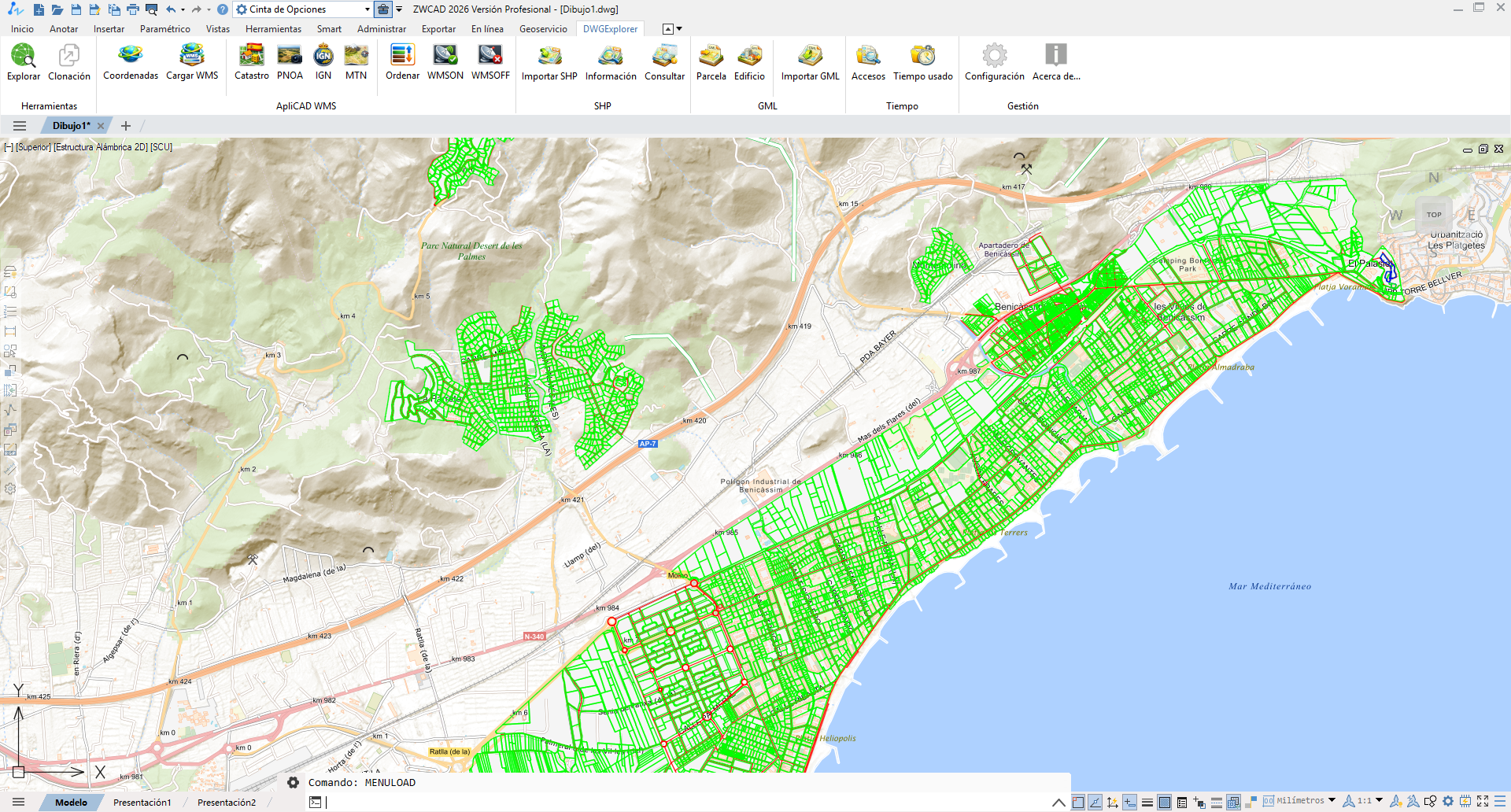
Map layers ready to support better decisions
Drawing coordinates
Set the right spatial reference system before loading maps to avoid offsets and positioning errors.
WMS loading
Check availability, read layers and use the service's own coordinate system if you need a quick setup.
Cadastre and PNOA
Load parcels, cadastral references or aerial orthophotos without typing the service URL by hand.
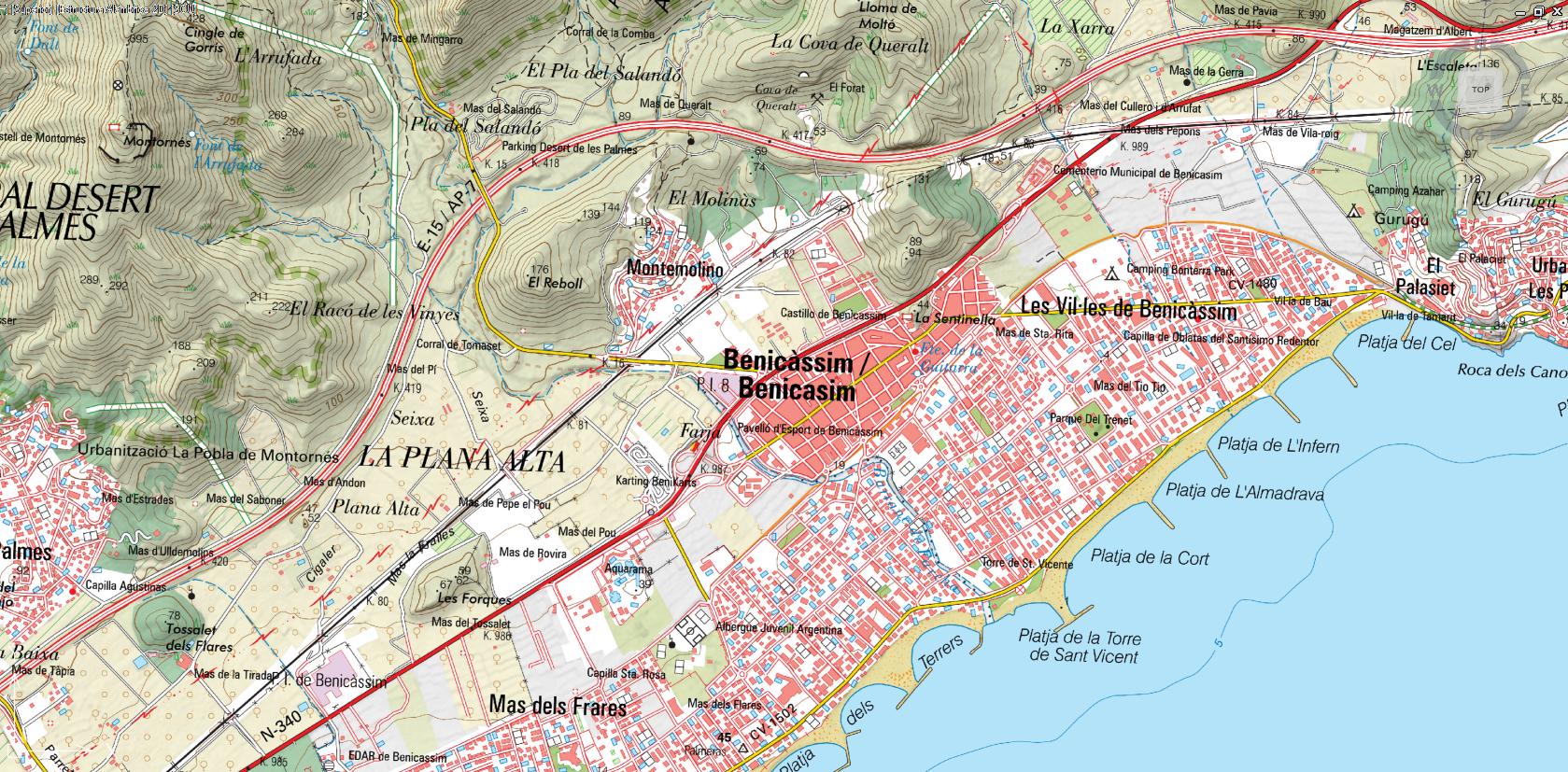
IGN and MTN
Combine different map sources to get a richer reading of the surroundings and the project.
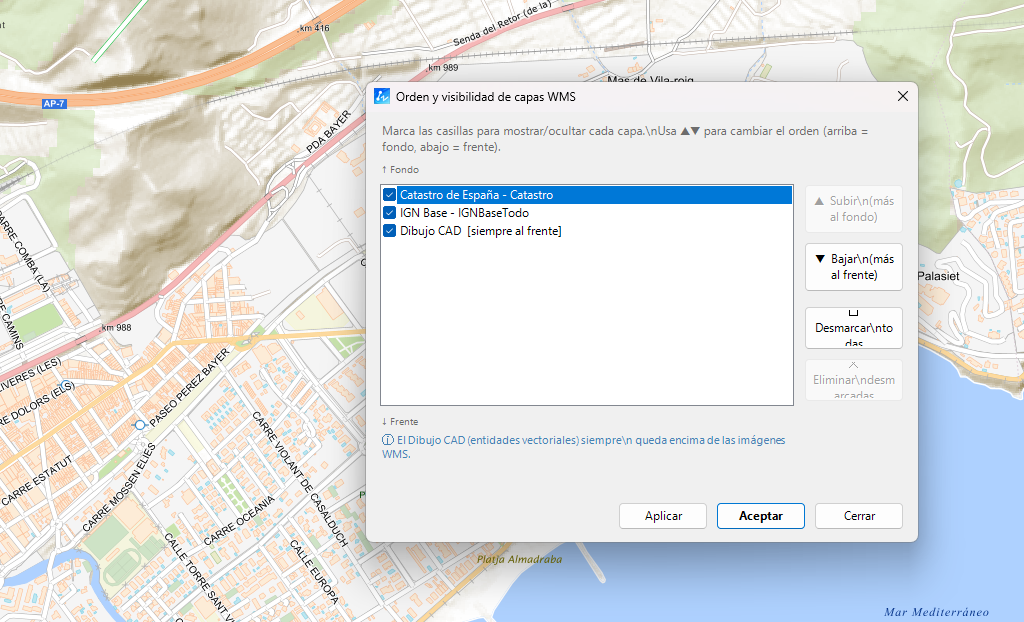
WMS layer order
Move layers up or down, hide or remove them to decide which information takes priority at any time.
WMSON and WMSOFF
Temporarily turn off heavy map layers to move around quickly, then bring them back with the same configuration.
Useful georeferencing for review, cross-checking and verification
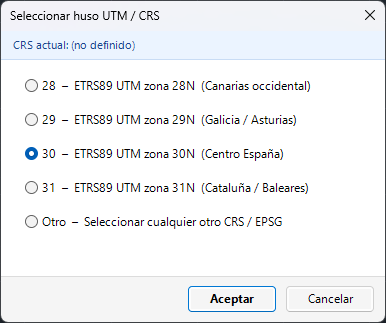
Start right: set the correct UTM zone and spatial reference
WMS loading depends on a consistent coordinate system. DWGExplorer offers a dedicated dialog for Spain and access to additional basic UTM zones.
Overlay maps without losing the project geometry
WMS layers stay beneath the CAD drawing, so the vector content remains visible and editable without interference.
Cadastre, PNOA, IGN and MTN one click away
Shortcuts remove manual steps and speed up setup for parcel, topographic or territorial validation work.
How to set up a GIS session in DWGExplorer
Set coordinates
Assign the correct UTM zone or spatial system to the drawing before connecting services.
Connect the WMS
Check availability, review the layers and decide whether you want to zoom to extents.
Arrange the display
Put each layer in the right order to highlight the priority information.
Optimize performance
Temporarily turn services off with WMSOFF and bring them back with WMSON once you are at the view you want.
Get answers to the key questions before you try DWGExplorer
Do I need to know the exact coordinate system before loading a WMS?
Not always. DWGExplorer lets you use the coordinate system indicated by the WMS service itself, which makes loading easier when the UTM zone is unclear.
Do WMS layers cover the CAD drawing?
No. The drawing geometry stays above the maps, so you can keep working on it.
What if the session has many layers and becomes slow?
You can use WMSOFF to turn them off temporarily and WMSON to bring them back later with the same configuration.
Validate your drawing against official maps without leaving your CAD
DWGExplorer goes beyond analyzing the DWG internally: it also helps you place it in context with real territorial information.
Ideal for parcel work, territorial review and checks against orthophotos or the Cadastre.