Master the whole drawing from a single table
DWGExplorer turns DWG content into a working view: find, filter, select, clone, copy or delete objects with fewer clicks and better context.
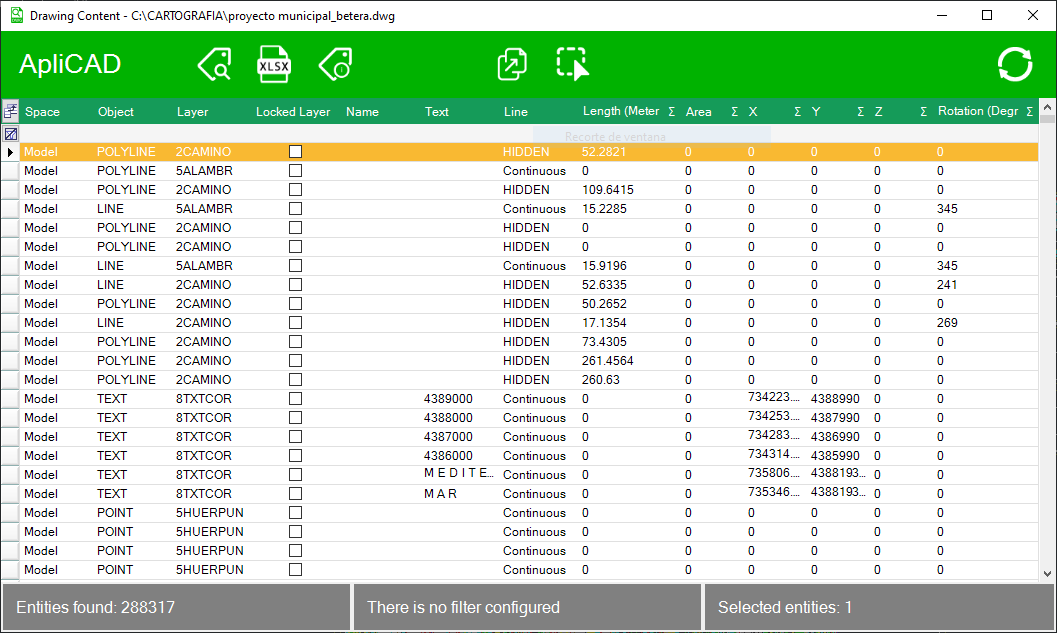
Features built for fast work on real entities
Advanced search
Find elements by type, layer, color, linetype, text or block attributes without combing through the drawing by hand.
Filter by column and by selection
Show only what is selected, what is not selected or the whole drawing, depending on the analysis you need.
Two-way selection
Select from the table or from the drawing and cross-check both views to review exactly the same objects.
Copy, delete and clone
Run direct actions on visible or selected subsets, with confirmation for destructive operations.
Refresh data
Reload the drawing state after large-scale changes or when you want to restart the in-memory analysis.
Excel, exactly as you see it
Export only visible columns and, where relevant, only selected records to get useful reports from minute one.
Explore, filter and edit drawing data in one place
See the drawing as a structured database
Exploration gathers the relevant information for each object and shows it in a clear table, ready for searches, filters and structured review.
Work on complex sets without losing precision
Select all visible records, mark items from the drawing, zoom to the selection with the magnifier and step through objects one by one for review.

Use attributes, cloning and export from the same panel
Show block attributes in the table, clone the template object and export exactly the view you are working with.

How it works in a real review task
Explore the drawing
Load the table with all entities and get ready to read the whole model.
Filter and locate
Use columns, attributes and selection states to keep only the relevant subset.
Review on the drawing
Zoom to the object or set, check the visual context and step through the selection.
Export or act
Export to Excel, or copy, clone or delete the elements you have validated.
Get answers to the key questions before you try DWGExplorer
Can I export only what I see on screen?
Yes. The export respects the visible columns and, if there is an active selection, it can be limited to those records.
Is selection only done from the table?
No. You can also mark in the list what is selected in the drawing and combine it with the filter by selection.
What happens when I delete entities?
DWGExplorer asks for confirmation and leaves “No” as the default option, to prevent mistakes in a destructive operation.
Can it be used to review blocks with attributes?
Yes. You can show attributes in the table and use them as search or filter criteria.
Can I use the block properties tables of AutoCAD dynamic blocks in ZWCAD?
Yes. ZWCAD keeps the properties table of dynamic blocks created in AutoCAD, but it does not let you use it. DWGExplorer for ZWCAD, from version 1.1.1, opens it from the block's shortcut menu and applies the row you choose: visibility state, dynamic parameters and attributes. In AutoCAD and BricsCAD this feature is already built in.
Try the most immediate part of DWGExplorer on your own drawings
If your priority is reviewing, finding and acting on entities faster, this page best shows how much time the product saves.
Full 30-day trial · Perpetual license for €199.