A single installer and one license per CAD and version
This page summarizes how to get DWGExplorer running: downloads area, account verification, single installer, automatic activation and updates.
What to know before you install and buy
Single installer
One digitally signed installer for ZWCAD 2025 and 2026, AutoCAD 2025, 2026 and 2027, and BricsCAD V26 and V27. It detects the ones on your computer and lets you choose.
One license per CAD and version
ZWCAD 2025 and ZWCAD 2026 are separate licenses, under the same email address. Once available, the license is enabled with no extra steps inside the program.
Registration and verification
Sign up with email and password or with Google and Microsoft, with an initial account verification. It is the same identity you later use inside DWGExplorer.
Updates
When you open the CAD, at most once every 24 hours, DWGExplorer checks whether there is a new version and asks if you want to install it. It is optional.
From version 1.x
The 2.0 installer replaces the previous ones and keeps the language, settings and license, with a single entry in Add or Remove Programs.
Interface in four languages
Spanish, English, Portuguese (Brazil) and French. You choose the language in the installer and can change it from the product's settings dialog.
How to get started in four steps
Download the single installer
Sign in to the ApliCAD portal, confirm your email if it is your first time and download the installer.
Choose language and CAD
When you run it, choose the language and the versions to install on: those detected on the computer are selected.
Log in
Use the same email and password as the downloads portal to log in to DWGExplorer.
Receive activation
When you receive the confirmation email, the license is enabled with no extra steps inside the plugin.
Simple setup, with clear information inside the program
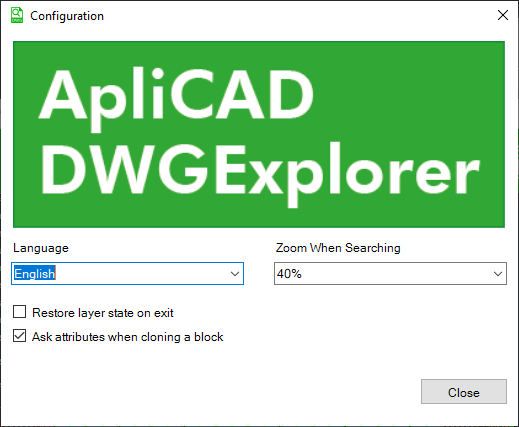
Control how DWGExplorer behaves when searching or cloning
You can decide how much zoom is applied when locating an entity, whether layers are restored on exit and whether attributes are requested when cloning blocks.
Check version, license and available updates
Key software information is never hidden: users can check status and validity from the plugin itself.
Module ready to be expanded with screenshots of each feature.
Get answers to the key questions before you try DWGExplorer
Do the downloads portal credentials also work inside the plugin?
Yes. The same email and password used in the downloads portal are used to sign in to DWGExplorer.
Do I need to enter the license manually in the program?
No. Activation becomes available automatically when the user receives the corresponding confirmation.
Is there a different installer for each CAD?
No. Since version 2.0 there is a single installer for every CAD and version. It detects the ones on your computer and lets you choose where to install DWGExplorer.
Can one license be used for several CADs or versions?
No. Each license is for one CAD and one version: ZWCAD 2025 and ZWCAD 2026 are separate licenses, at €199 + VAT each. The installer is the same for all of them, and they are all linked to your email address.
Do I need to buy another license to move to DWGExplorer 2.0?
No. The license does not depend on the DWGExplorer version: it stays valid when you update the program and you do not have to log in again.
Can I change the language and search behavior?
Yes. The configuration dialog lets you adjust the language, zoom when searching, layer restoration and behavior when cloning blocks with attributes.
Get the installation ready and start trying it today
Download the installer, log in with your ApliCAD account and start working with DWGExplorer in your CAD.
Use the same downloads account to access DWGExplorer and your licenses.