Exploring the drawing content
The functions in this section are in the Herramientas (Tools) panel:
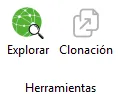
Explore
Section titled “Explore”The Explore function performs a complete analysis of the objects in the drawing, collecting the relevant information for each of them.
The result of this analysis is displayed in a table-style form, so you can view and consult the data in a clear, structured way. The table also includes filtering and search tools, which make it quick to find specific information among all the analyzed elements.
When you run Explore, the following dialog box appears:
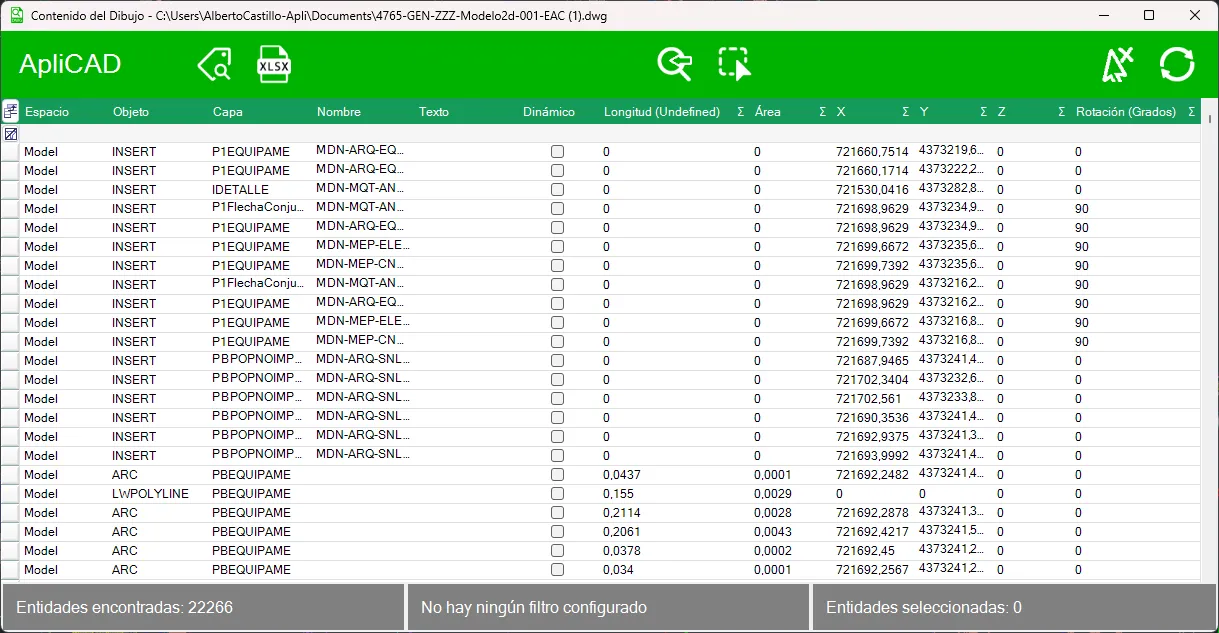
As you can see, the table includes several columns with different fields, so you can search or filter using any of them, making it easy to find specific information in the drawing.
In addition, if you click the top of the form, the dialog box is temporarily minimized, giving you more room to view the drawing. Click the same area again and the form returns to its normal size.
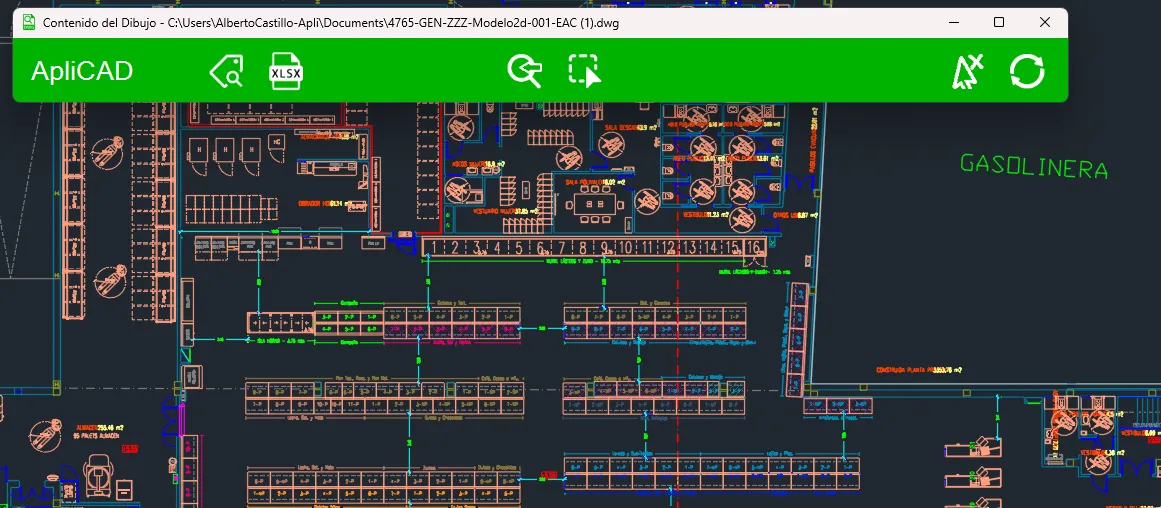
When you select a record in the form, you can double-click it and the program will automatically zoom to the corresponding object and leave it selected, so you can perform other actions on that element.
The same behavior applies when you make a multiple selection of records: the zoom adjusts to show all the selected objects at the same time in the drawing.
Multiple selection
Section titled “Multiple selection”You can easily select several records with the mouse by dragging over the rows of the table. As shown in the image, the selected records are highlighted in orange:
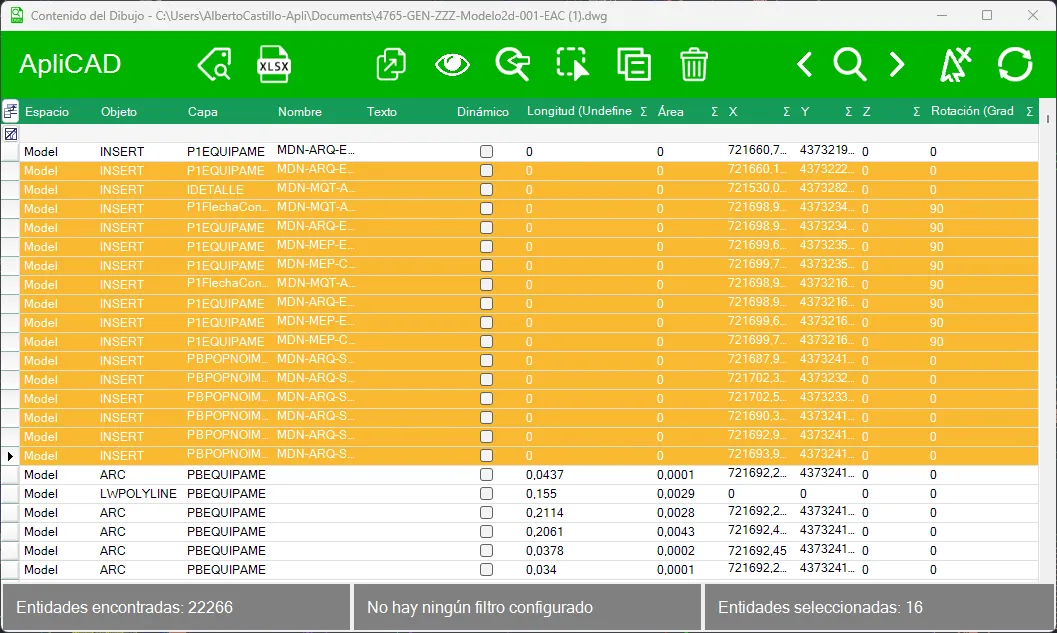
Once the selection is made, you can use the options available in the buttons at the top of the form to perform various actions on the selected objects.

With the navigation icons on the left and right, you can step through the selected elements one by one. The program automatically locates each object in the drawing and zooms to it, so you can review them individually.
For example, you can use this feature to go through all the blocks of a specific model and check where they are in the drawing.
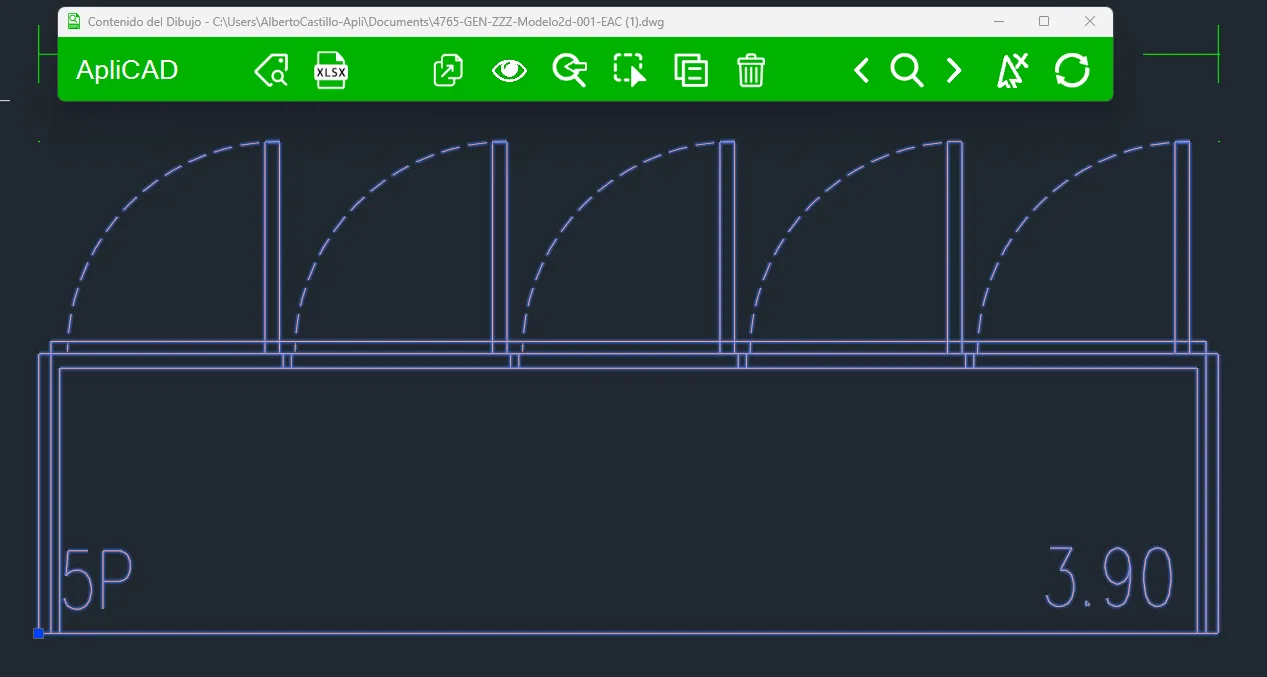
In addition, with the magnifying glass icon you can zoom to all the selected elements at once, adjusting the view of the drawing to show all the objects marked in the form simultaneously.
Show attributes
Section titled “Show attributes” The Show Attributes icon turns the display of block attributes in the data table on or off.
When this option is on, the attributes associated with blocks are shown as additional rows, so you can view their content and use them as filter or search criteria in the form. This makes it easier to find specific blocks based on the values of their attributes.
Clone element
Section titled “Clone element” The Cloning button clones the selected object, creating a new instance with the same characteristics as the original.
If several elements are selected, the program uses the first one in the list as the template object for the cloning, taking its properties as the reference for creating the new element.
Filter by selection
Section titled “Filter by selection” The Filter by selection icon has three states and controls which elements are shown in the dialog box when there is a selection in the drawing.
Depending on the selected state, you can show only the elements that are selected, show those that are not selected, or show all the elements in the drawing. This makes it easier to analyze and filter the information based on the active selection.
Select from drawing
Section titled “Select from drawing” The Select from drawing icon marks in the object list the objects that are currently selected in the drawing.
This lets you perform a reverse search, identifying in the list the elements selected in the model so you can then apply actions to them from the filter interface.
Combining this button with the Filter by selection option is a very effective way to view and analyze the information of the objects in the list, making it easier to manage and control the elements of the drawing.
Select all
Section titled “Select all” The Select All button selects all the elements shown in the list.
Keep in mind that if there are active filters, the selection applies only to the elements that meet those filters and are visible in the table, not to all the objects in the drawing. This way, you can make large selections in a controlled way on specific subsets of elements.
 The Copy button copies all the selected elements, storing them temporarily on the system clipboard.
This lets you perform further actions with those objects, for example pasting them at another point in the same drawing or in a different drawing. This feature is especially useful for transferring elements between files quickly and easily.
Delete
Section titled “Delete” The Delete button removes all the selected elements from the drawing.
When you run this action, the selected objects are deleted directly from the drawing, so it is a good idea to check the selection before confirming the operation.
The program always asks the user for confirmation, for example:
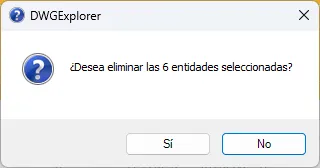
The default option is No, which cancels the deletion.
Clear selection
Section titled “Clear selection” The Clear selection button resets or clears the selection of elements in the form, removing any active mark or selection in the list. This way, you can reset the selection state and start a new filtering or analysis process on the objects in the drawing.
Refresh data
Section titled “Refresh data” The Refresh button reloads all the model information in the form.
While you work on the drawing —adding, deleting or modifying elements— the form is updated continuously to reflect the changes. However, when working with a large number of entities, it can be more efficient to use this button to force a complete reload of the information, which acts as a reset of the data the program keeps in memory.
This ensures that the information shown in the form matches the current state of the drawing exactly.
Export to Excel
Section titled “Export to Excel” The Excel Export button exports to Excel all the information currently visible in the list, that is, all the columns set as visible in the form at that moment.
If no record is selected —for example, because you previously used the “Clear selection” button— the program assumes that you want to export all the records shown in the table. In that case, a confirmation message similar to the following appears:
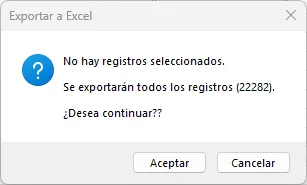
On the other hand, if a set of elements is selected, the message is different and indicates that only the selected records will be exported.

In both cases, as mentioned above, only the columns marked as visible in the list are exported, exactly matching the display settings you have at that moment.
To change the columns shown in the form, use the button indicated in the image and marked in red:
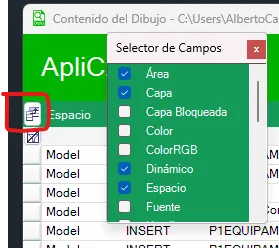
Clicking it opens the Field Chooser, a dialog box listing all the available columns, highlighting those currently set as visible. From this window you can show or hide each column as needed.
The changes you make affect both how the information is displayed in the form and what is exported to Excel, since only the columns marked as visible at that moment are included in the export.
Once you have selected an entity in the drawing, clicking the Clone button automatically runs the same command that was used to create the object, using the same properties that define the selected entity.
This way, you can quickly repeat the creation of similar elements without having to look for or set up the original command again. For example, if the selected entity is a block, the system directly starts a new insertion of the same block, keeping its main characteristics, such as layer, scale, rotation and other associated properties. This speeds up your work and ensures consistency when creating elements in the drawing.