Using WMS services
All the commands in this section are in the ApliCAD WMS ribbon panel:

Coordinates
Section titled “Coordinates”To use a WMS (Web Map Service) correctly, the drawing must have a suitable coordinate system defined, because that is what determines whether the map images are positioned correctly over the model.
To make this setup easier, the application includes a specific command to define or change the drawing’s coordinate system easily, ensuring correct georeferencing of the data. When you run this command, the following dialog box appears, from which you can select the most suitable spatial reference system for the project.
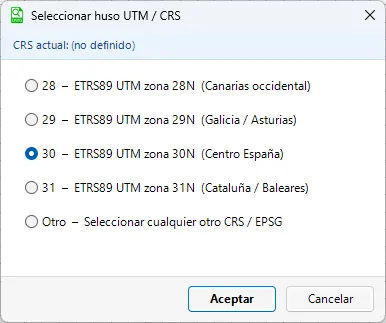
If you are working with mapping of Spain, the application shows the different UTM zones available for the territory, so you can easily select the one that matches the project’s work area. This simplifies choosing the most suitable reference system for displaying and positioning the mapping correctly.
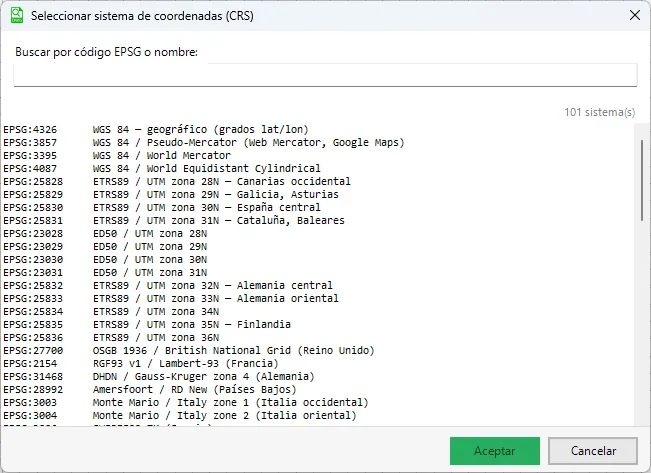
On the other hand, if you need to work in other UTM zones or different coordinate systems, you can access a list of basic zones through the last option in the menu, Other – Select any other CRS / EPSG. Selecting this option opens the following dialog box, where you can choose the spatial reference system you want to use.
Load WMS
Section titled “Load WMS”The Load WMS form looks like this:
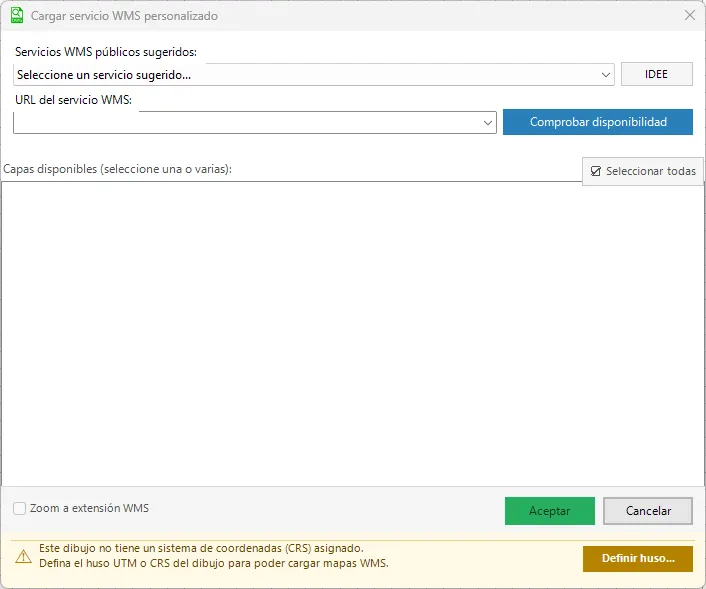
At the bottom of the dialog box, a warning highlighted in yellow may appear indicating that the drawing does not have a coordinate system defined. In that case, you can easily set one using the “Define zone…” button.
If you don’t know the project’s exact UTM zone, a practical alternative is to use the coordinate system defined in the WMS service itself, which ensures that the mapping is positioned correctly.
The top of the form shows a short list of the most commonly used WMS services. You can also use the IDEE button (IDEE, Spanish Spatial Data Infrastructure), which accesses the information published by that organization in real time and shows a list of all available WMS services.
The form that appears is the following:
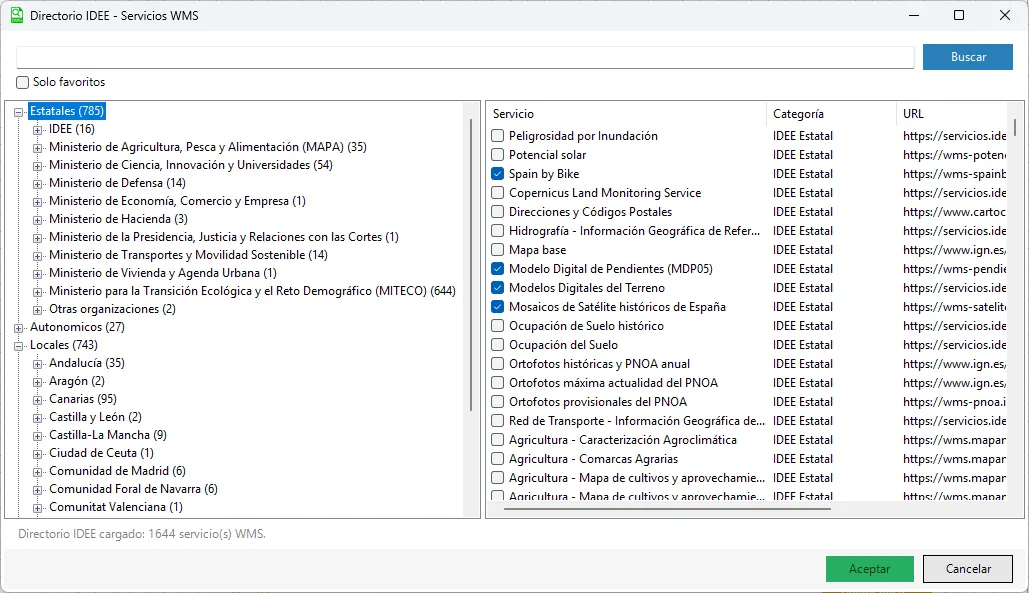
There are currently 1,644 WMS services published, classified by the organizations that publish them. This organization makes it easy to search for the WMS service you want.
To make searching and later use of the different services easier, you can save your favorites.
If you want to use a service that is not on the list, you can use the WMS service URL field and enter the address of the WMS service you want to load. For example, you can try the Spanish Cadastre server:
http://ovc.catastro.meh.es/Cartografia/WMS/ServidorWMS.aspxOnce you have entered the address and click the “Check availability” button, the system will try to connect to the service. If the server is reachable and responds correctly, a list of the layers available in that service appears, as shown in the following image. You can then select the mapping you want to display in the drawing.
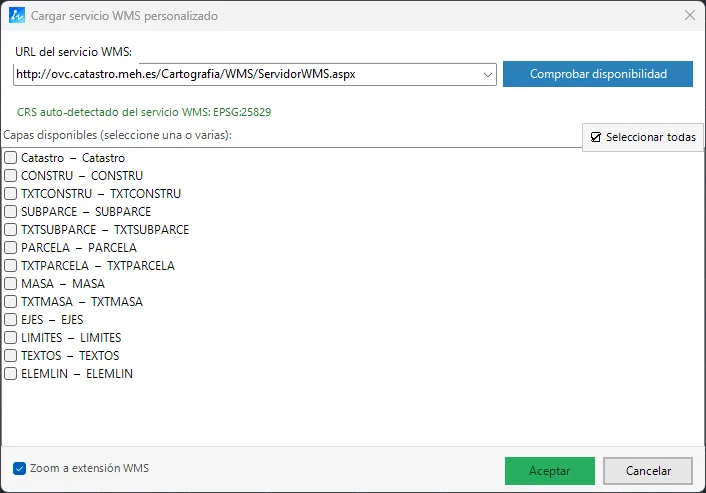
Note that the WMS service itself indicates the coordinate system in which the mapping is available, as shown in the image. This information is very useful to make sure the drawing and the service use the same reference system, avoiding offsets or errors in the position of the information.
From then on, you can select the layers you want to add to the working session. For example, if you choose the first available layer and keep the “Zoom to WMS extent” option checked, when you click Accept the program automatically adjusts the view to show the full extent of the loaded mapping, with the result shown below.
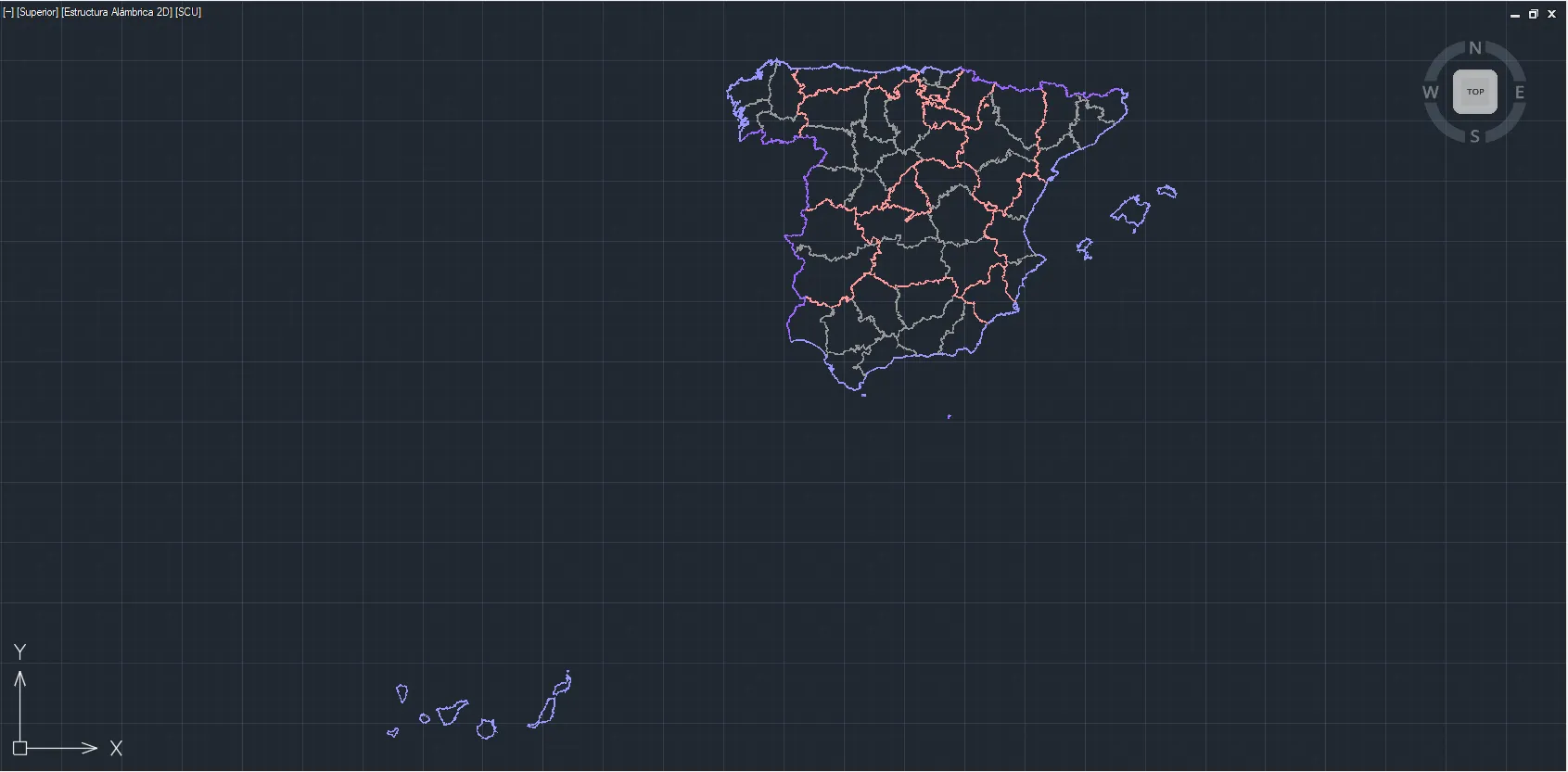
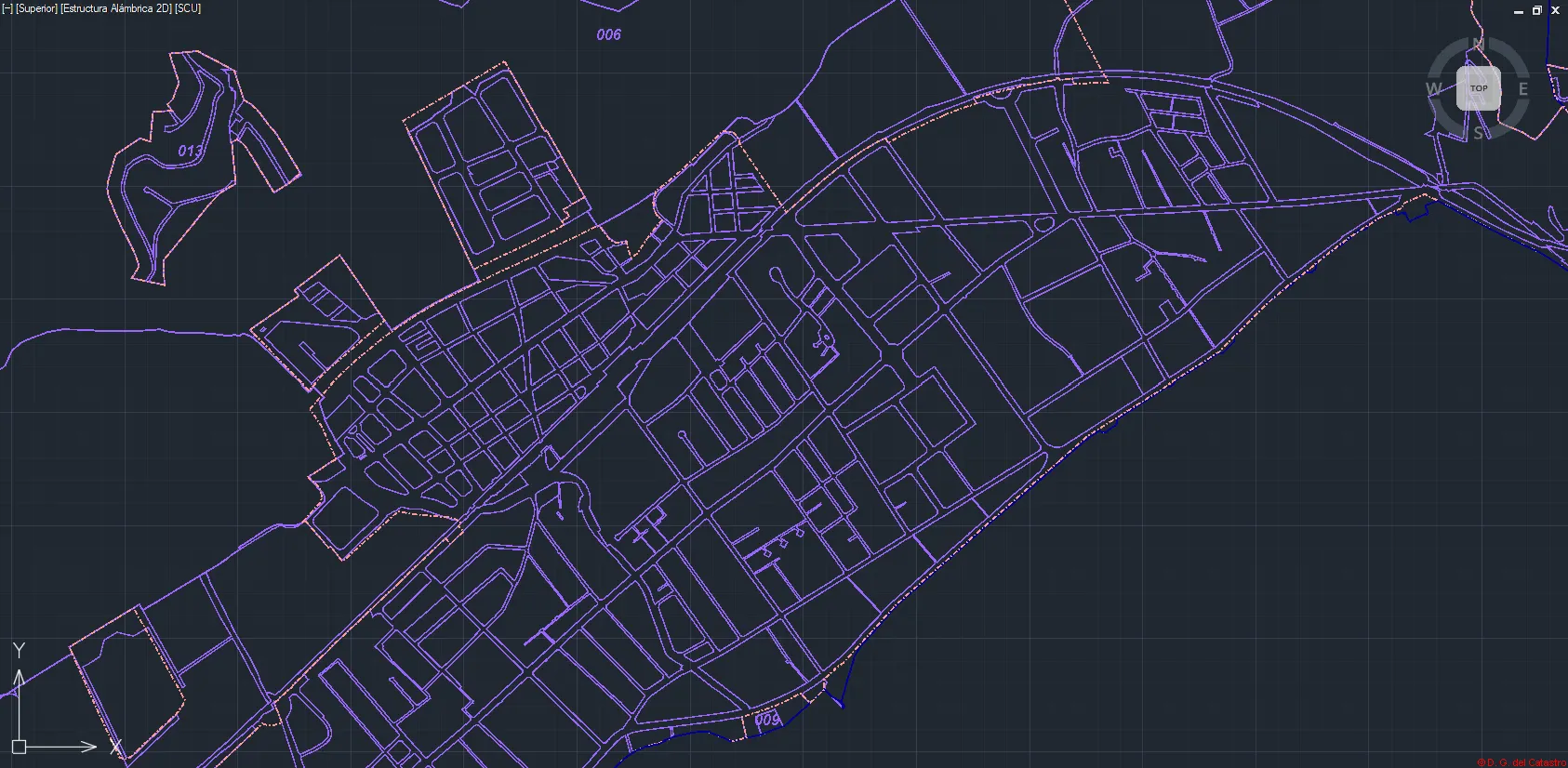
From this point on, every time you zoom in on an area of the drawing, the system automatically updates the mapping shown. This way, the WMS service loads more detail as the zoom level increases, progressively showing more information depending on the display scale.
This behavior lets you work much like with online map viewers, where the information is refreshed dynamically based on the current view, optimizing both the clarity of the information shown and system performance. You can see the result in the following image:
Cadastre
Section titled “Cadastre”The Cadastre button provides a quick, direct way to load Spanish Cadastre mapping without having to enter the WMS service address manually.
When you use this option, the system automatically sets up the corresponding WMS server and its main layers, giving you immediate access to cadastral information —such as parcels and references— in the drawing. This simplifies connecting to the service and makes it easier to integrate official mapping into your working environment.
The PNOA button loads the PNOA (National Aerial Orthophotography Plan) image layer directly, so you don’t have to enter the address of the corresponding WMS service manually.
For example, in the case shown above, when you click this button the system asks whether you want to add the new layer to the current session or replace the layer that is already loaded.
Since the PNOA layer is an orthophoto image without transparency, if you choose to replace the existing layer, the orthophoto becomes the background of the drawing, with a result similar to the one shown in the following image. This way, you can view the project over a real aerial image of the area, which makes it easier to identify the surroundings and verify the location of the drawing’s elements.
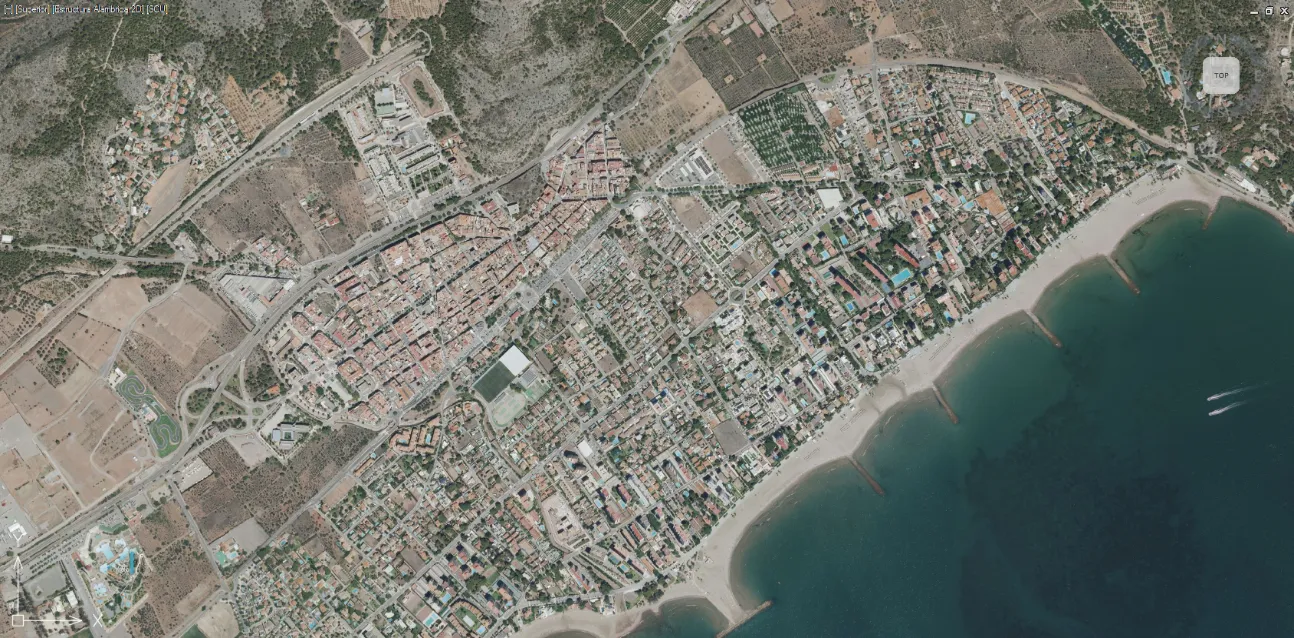
This image is overlaid with the Cadastre one.
You can change the order of the images later with the Order button.
For the IGN (National Geographic Institute of Spain), the process is similar to the one described for PNOA. When you use this option, the system connects directly to the corresponding service and lets you load the available layers for display in the drawing.
This way, you can quickly add official IGN mapping, integrating it with the rest of the project’s layers and making it easier to consult and analyze the territory within your working environment.
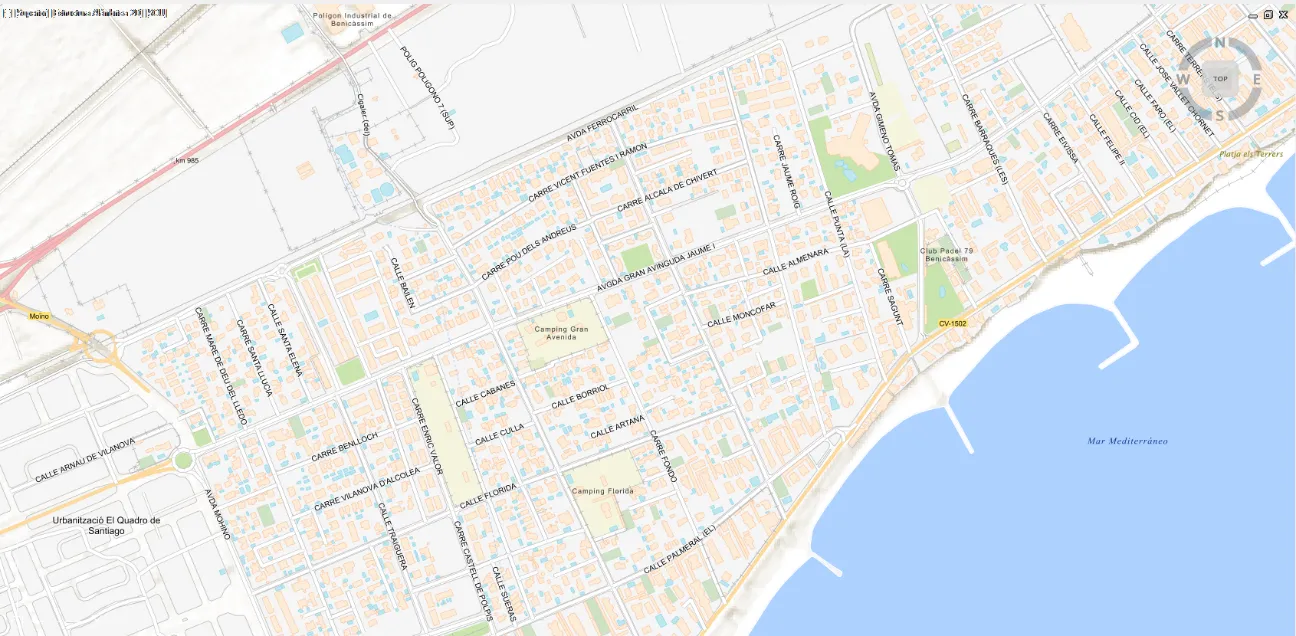
For the MTN (National Topographic Map), the behavior is also similar. When you use this option, the system automatically connects to the corresponding service and lets you load the topographic mapping for display in the drawing.
This way, you can easily integrate official topographic information, which can be used as a reference for interpreting the terrain, locating geographic features or checking the project’s territorial context.
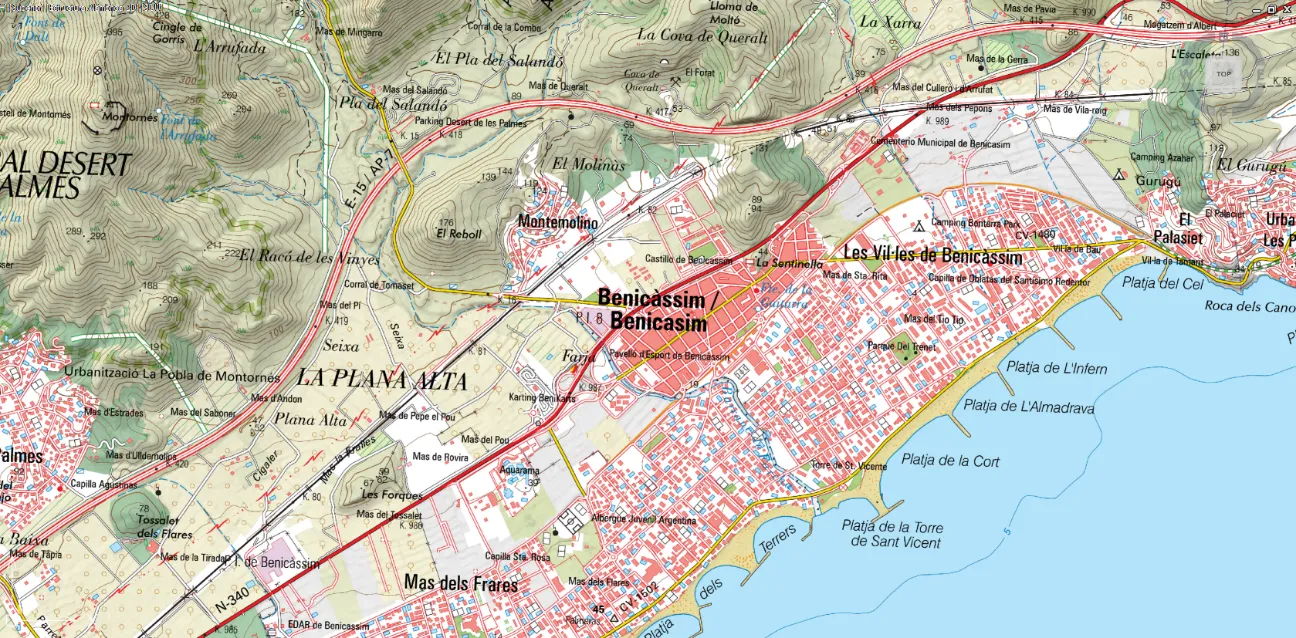
In all cases, the quick-load buttons are designed to be simple and immediate to use. Whenever you indicate that the new information should be added to the session, the loaded layer is placed above the previously added layers, keeping a logical display order.
In addition, all layers from WMS services are placed below the existing geometry of the drawing, so the project’s vector elements always remain visible and can still be selected and edited without interference. This ensures proper integration between the background mapping and the drawing’s own content.
WMS layer order
Section titled “WMS layer order”The Order option (WMSOrden command) makes it easy to manage the display and hierarchy of the layers loaded in the session. With this tool you can rearrange the order in which the different map layers are displayed, adapting it to your needs.
With this option you can perform different actions to change the relative position of each layer, deciding which information is shown above or below the rest. This is especially useful when working with several overlapping layers, such as orthophotos, cadastral mapping or topographic maps.
The available actions are the following:
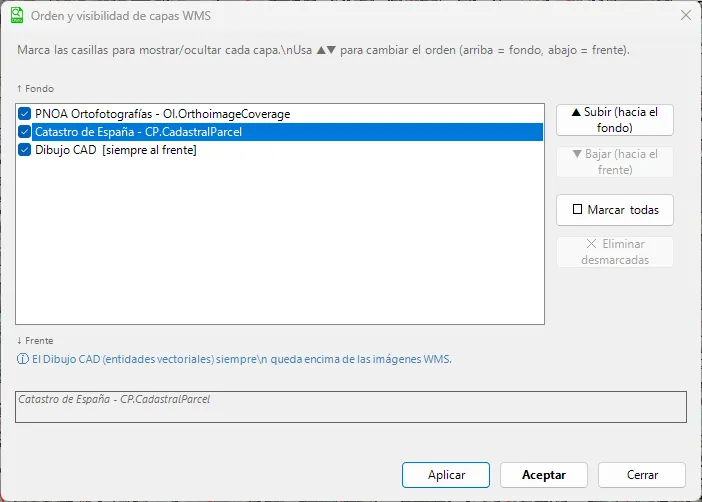
As you can see in the window, the CAD Drawing is always shown as a permanent, visible layer, since it corresponds to the project geometry you are working on.
Next come the layers from the map services loaded in the session. In this example there are two additional layers, one for the Cadastre and one for PNOA, as you can see in the image. These layers can be rearranged as needed to adjust their display order in the drawing.
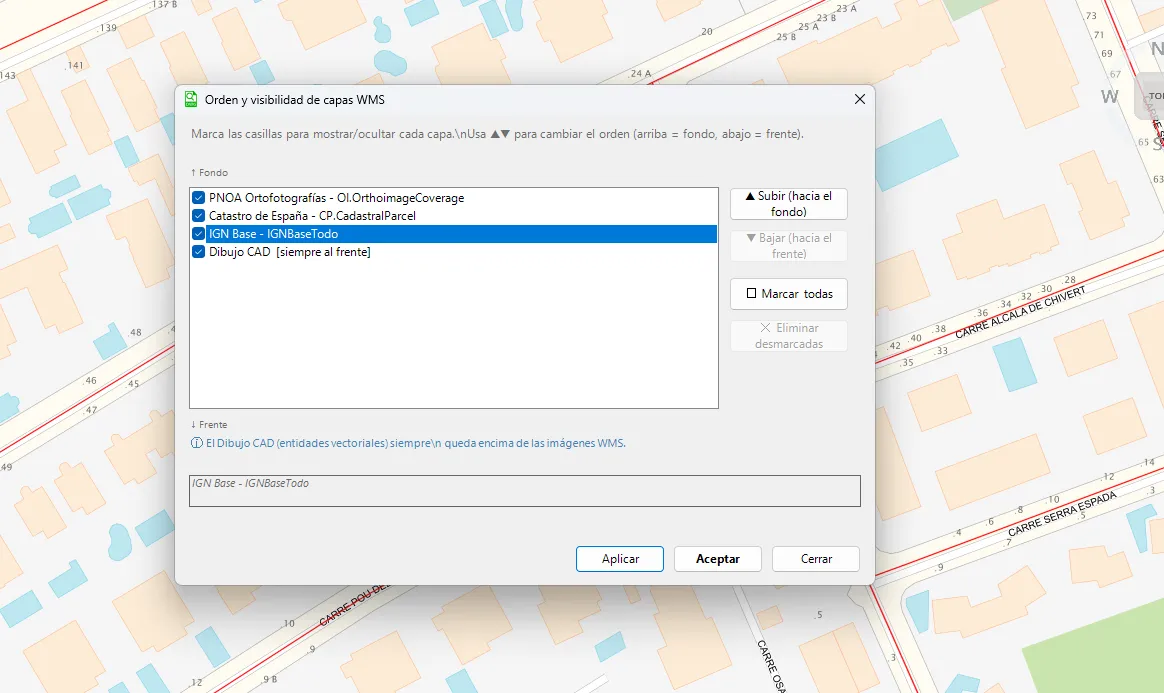
In this case, the IGN image is placed above the Cadastre layer, so one layer hides the other.
If you select the Cadastre layer, click the “Move down” button and then “Apply”, you change the display order of the layers. As a result, the Cadastre information is shown above the IGN layer, so parcel boundaries and other cadastral elements can be seen more clearly.
This adjustment lets you combine different mapping sources, choosing at any time which information should take priority in the display.
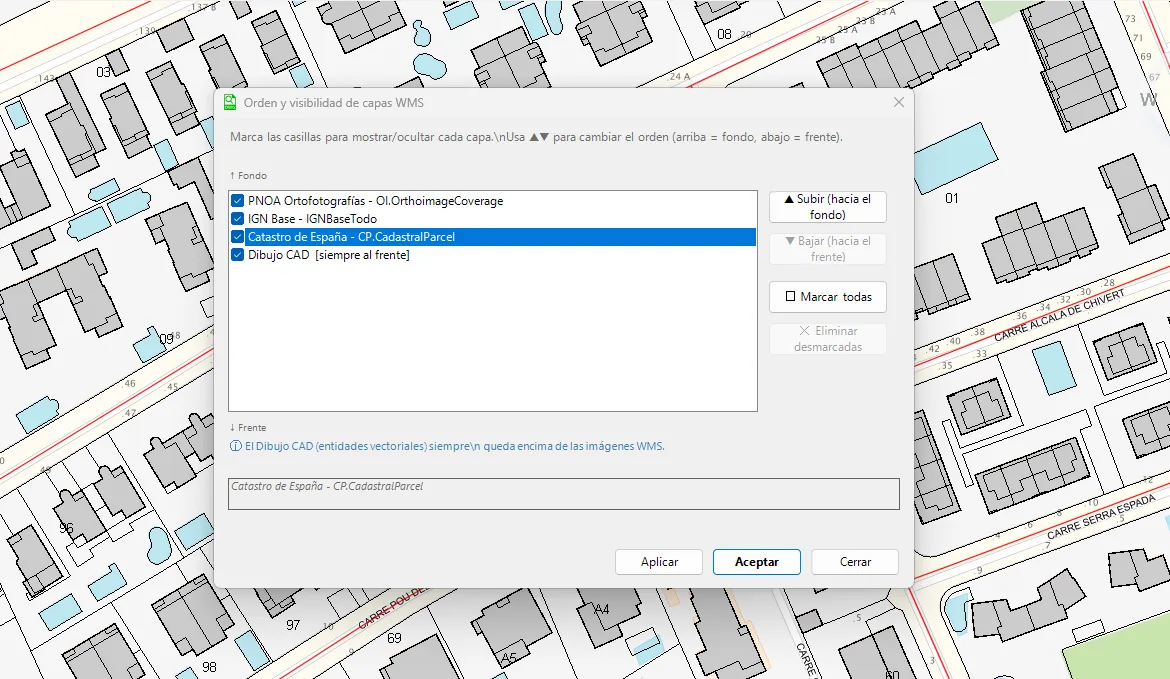
Changing the order of the layers thus greatly improves usability and the clarity of the displayed mapping, making it easier to highlight the most relevant information at each stage of the work.
In addition to changing the order of the layers, this window also lets you perform other useful actions, for example:
- Temporarily turn off the display of a layer, hiding it without removing it from the session.
- Remove any of the loaded layers from WMS services when you no longer need to display them.
These options give you more control over the active mapping sources, so you can adapt the drawing’s display to your needs at any time.
WMSOFF and WMSON
Section titled “WMSOFF and WMSON”In some situations you may need to zoom or pan in the drawing. When working with a large number of layers from WMS services, the time needed to reload the information of all of them can increase considerably.
To make work easier in these cases, the WMSOFF button lets you temporarily turn off all WMS layers immediately. This way, you can pan or zoom the drawing more quickly.
Once the view is where you want it, simply use the WMSON button to turn the WMS layers back on, automatically restoring the same layer configuration you had before, adapted to the new location in the drawing. This optimizes performance and makes work smoother when using multiple map services.
Associate image
Section titled “Associate image”Images displayed through a WMS service are not directly associated with the drawing. Therefore, if you want to print the plan or send the DWG file to a colleague, the information from the WMS image will not be shown.
The information on images associated with the previous project is the following:
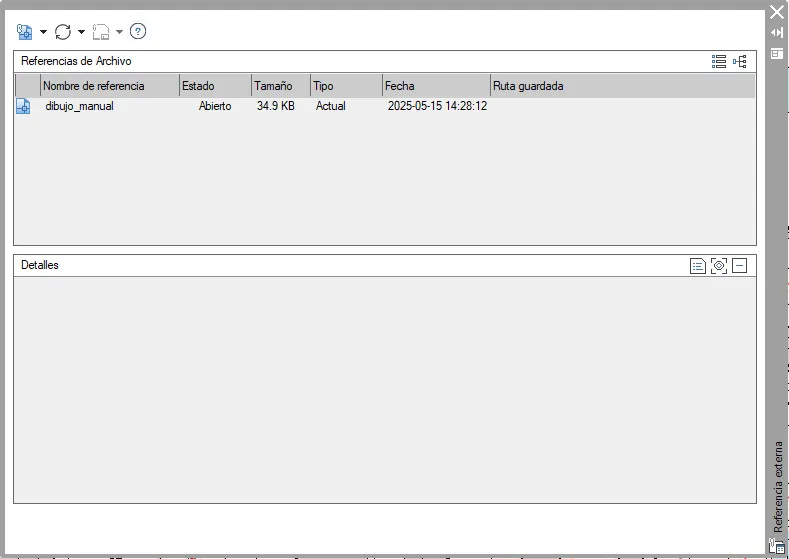
As you can see, there are no associated images.
To solve this, the Associate Image command generates the images from the WMS services as images associated with the drawing. The images are also saved with unique names in the same folder where the DWG file is stored.
In this example, clicking the “Associate Image” button generated the three images needed, as you can see in the image:
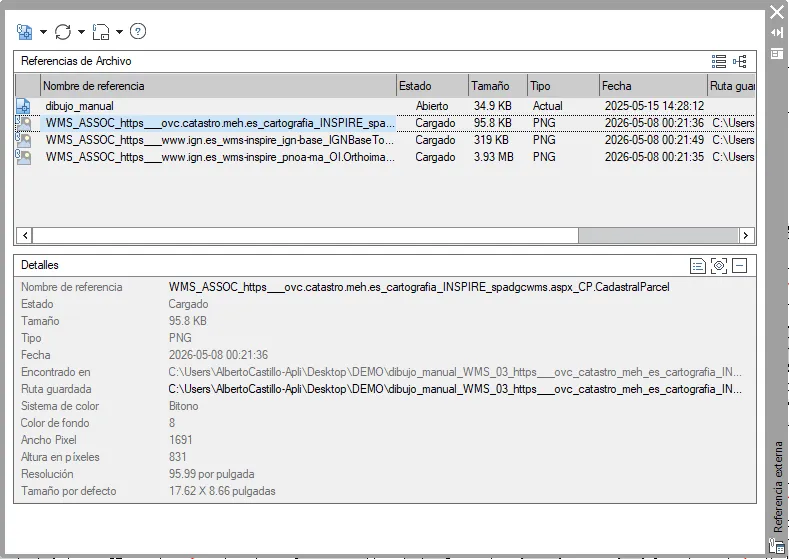
From then on, the images are associated with the drawing and you can control their visibility, transparency and other properties.