Usage time management
In addition to the drawing analysis functions and the tools for working with WMS services, SHP files and GML files, the program also includes some additional utilities designed to help users manage their day-to-day work.
These include tools to search for DWG files from a specific path or folder, making it quick to find and open drawings within large folder structures.
The system can also record and report the usage time spent on each file, so you know how long you have worked on each drawing. You can then use this information to analyze the time invested in different projects, which helps with cost and productivity estimates.
Search files
Section titled “Search files”The file search tool, opened with the Access button, uses the following dialog box:
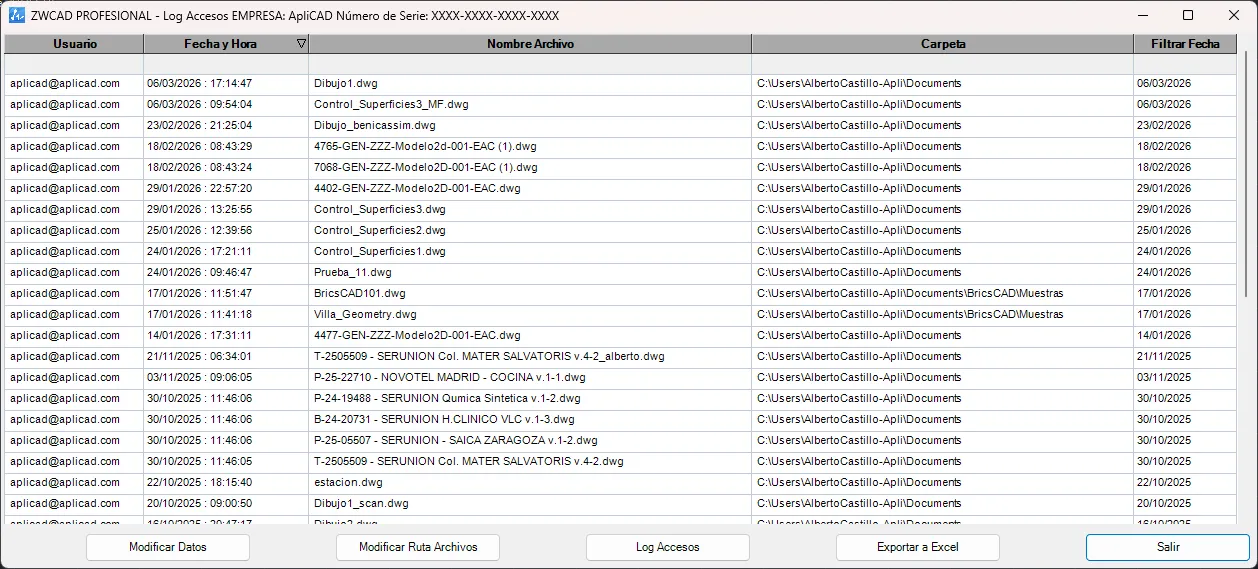
This window shows all the DWG files located in the path selected by the user, sorted so that the first item in the list is the most recently saved or modified file in that folder.
Each column also has filter fields to find a specific file quickly. For example, if you are looking for a drawing whose name you know starts with “estacio…”, you can use the filter in the Nombre Archivo (File name) column:
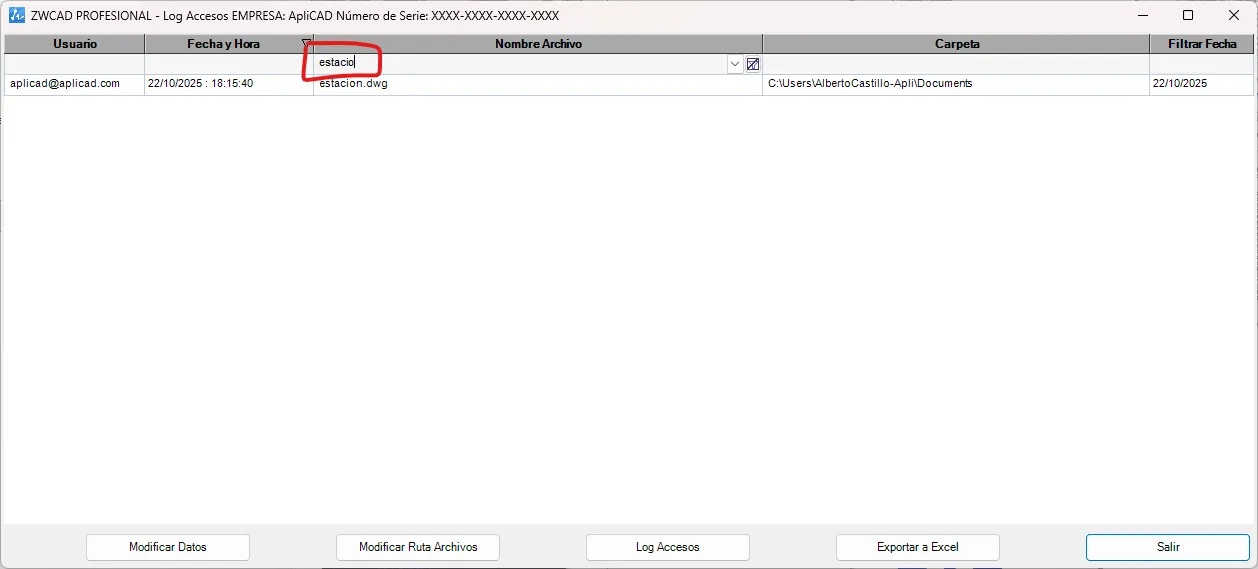
When you apply the filter, the list updates to show only the files that meet that condition, making them easy to find and open.
Double-clicking any row in the list then opens the file directly in the program, giving you quick access to the selected drawing.
At the bottom of the window there are several buttons for different actions related to file management and user information:
- “Modificar Datos” (Edit data) – Lets you edit the user information, such as name, company, email address or ZWCAD serial number. These fields are for information only and identify the user in the records generated by the system.
- “Modificar Ruta Archivos” (Change file path) – Sets the local or network drive or folder from which the program searches for DWG files. Once the path is set, the system scans its contents and shows the drawings found in the list.
- “Log Accesos” (Access log) – Opens the log of opened documents, which shows the usage information for the different files. You can also open it with the Time Used button.
- “Exportar a Excel” (Export to Excel) – Automatically generates an Excel file with all the records currently visible in the window. The exported information matches exactly what is shown in the window, which makes later analysis or processing easier.
Check usage time by project
Section titled “Check usage time by project”With the Time Used button, or with the Log Accesos button in the previous window, you can open another window with the following information:
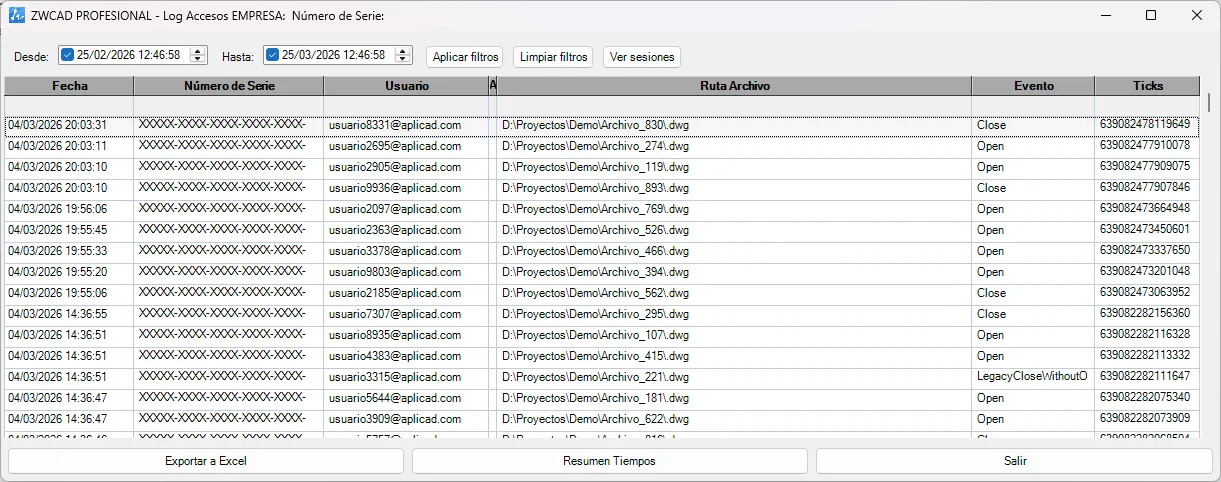
This list records when DWG files are opened and closed, as well as when each document gains and loses focus. With this information, it is possible to calculate the actual time spent on each file fairly accurately.
The system takes into account that several documents may be open at the same time, so it only counts the time for the drawing that is active at any given moment, that is, the one that has the focus among all those that may be open.
Admittedly, this method does not completely rule out situations such as opening a file, leaving it active and doing other tasks on the computer or even stepping away from the desk for a while. However, it does minimize the common problem of having several files open at once, ensuring that time is only recorded for the document that is actually active.
The recorded information can be filtered by date range and exported to Excel, making it easy to analyze later or to integrate into financial management or project control systems, so you can assign working time to each project.
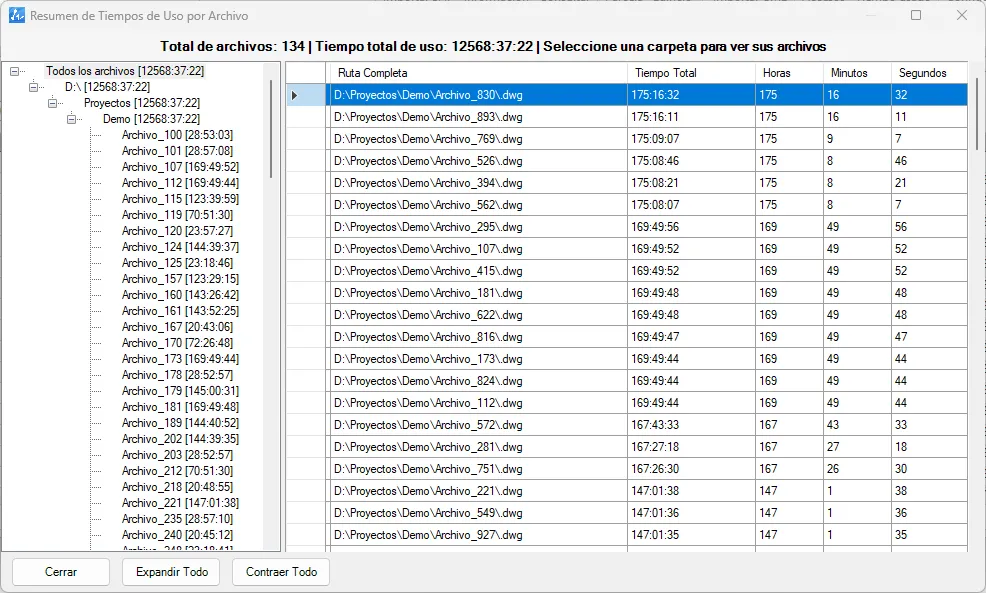
The system also has a “Resumen Tiempos” (Time summary) button, which provides a clear, grouped view of the time spent on each file. Since drawings are usually organized in project folders, this makes it very easy to get the total time spent on each project.