Using SHP files
The SHP (Shapefile) format, developed by Esri, has become one of the most widely used standards for exchanging geospatial information. Its broad adoption by public administrations, mapping agencies and GIS systems makes it a very valuable data source. That is why it is especially useful to have tools that load and integrate this information directly into the drawing, making it easier to view and use geographic data —such as parcels, infrastructure or administrative boundaries— within the CAD environment.
In addition, the SHP format works with vector geometry and associated attributes, so you can query additional information about each entity and use this data for analysis, land management or technical documentation.
Import SHP
Section titled “Import SHP”You can download various sets of Shapefile (SHP) files from the Cadastre Virtual Office of the Spanish Cadastre and import them directly into the drawing with DWGExplorer. To do so, click the Importar SHP (Import SHP) button.
In this example, we load the street centerlines file for the municipality of Benicàssim. After selecting the file, the program displays the following dialog box:
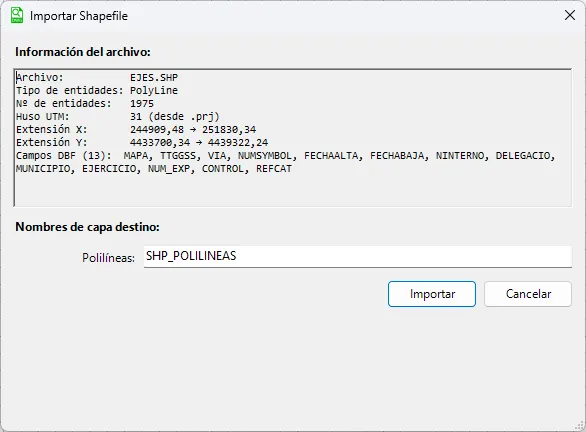
Before clicking Import, you can change the layer name. The dialog box also shows relevant information about the selected file, such as the number of entities, the geometry type and other useful details.
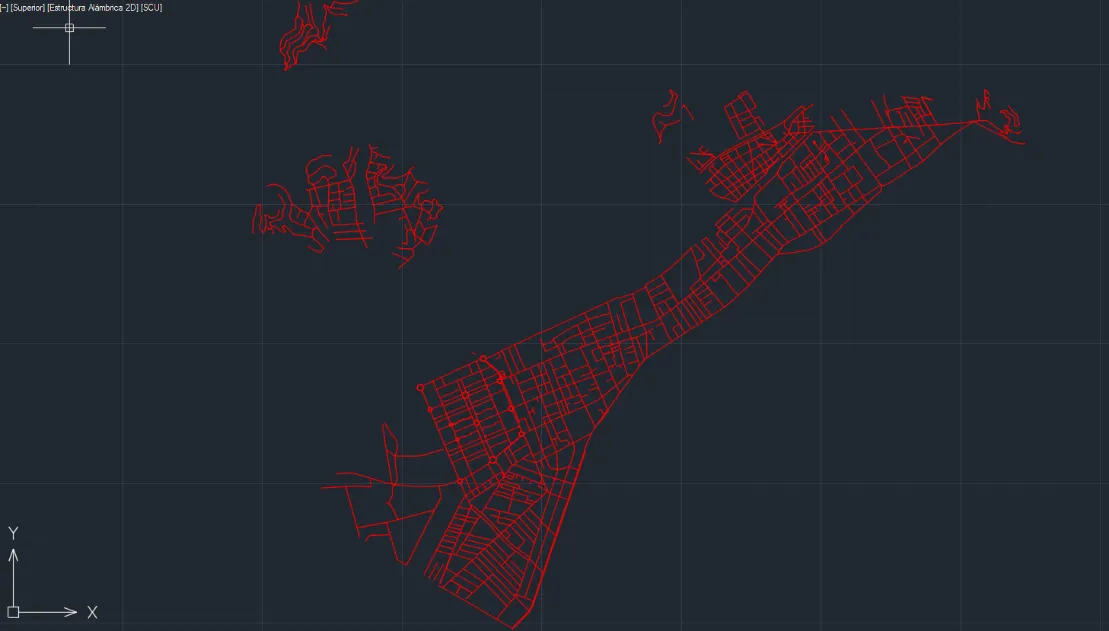
Once the street centerlines are imported, the program automatically performs a zoom extents and shows all the imported elements in the drawing, as you can see in the image:
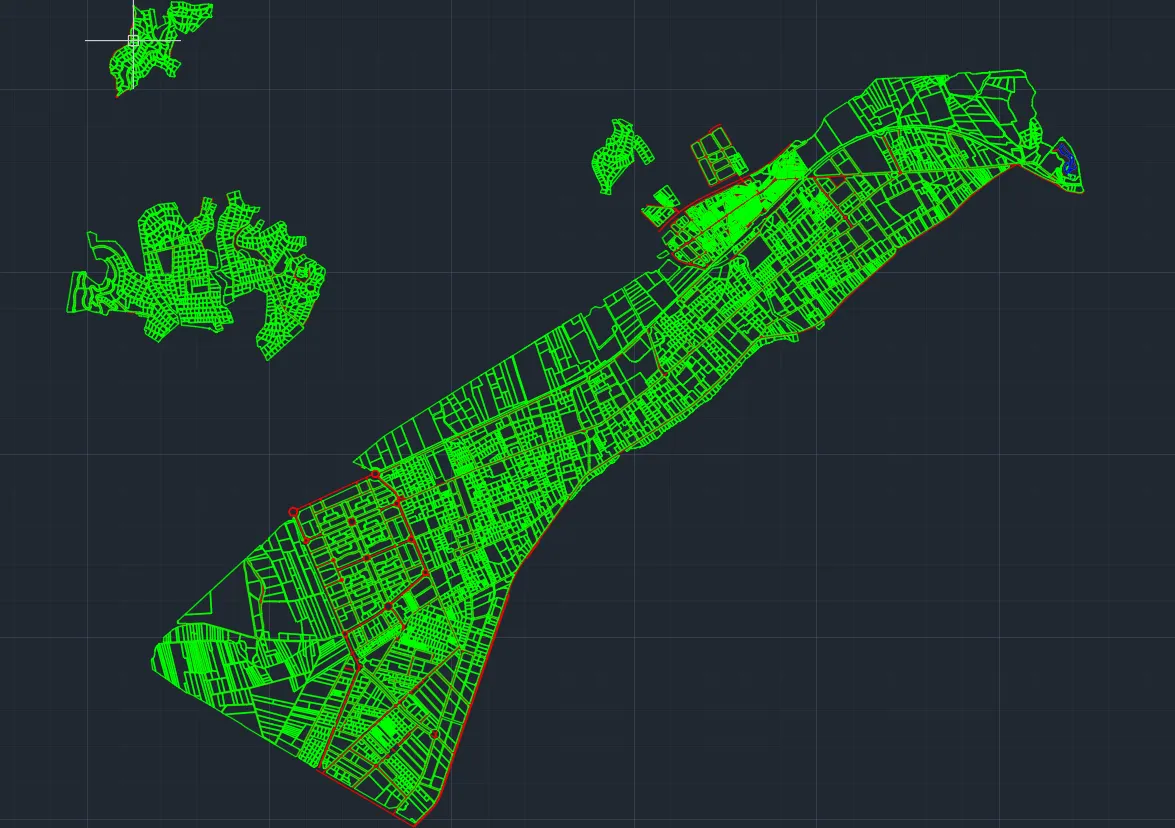
If we then import the parcels:
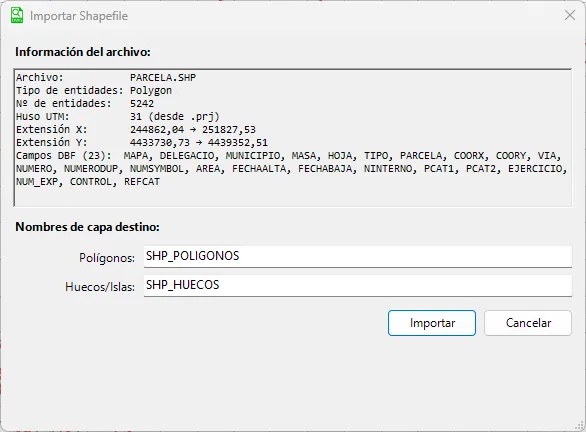
The result of the import is:
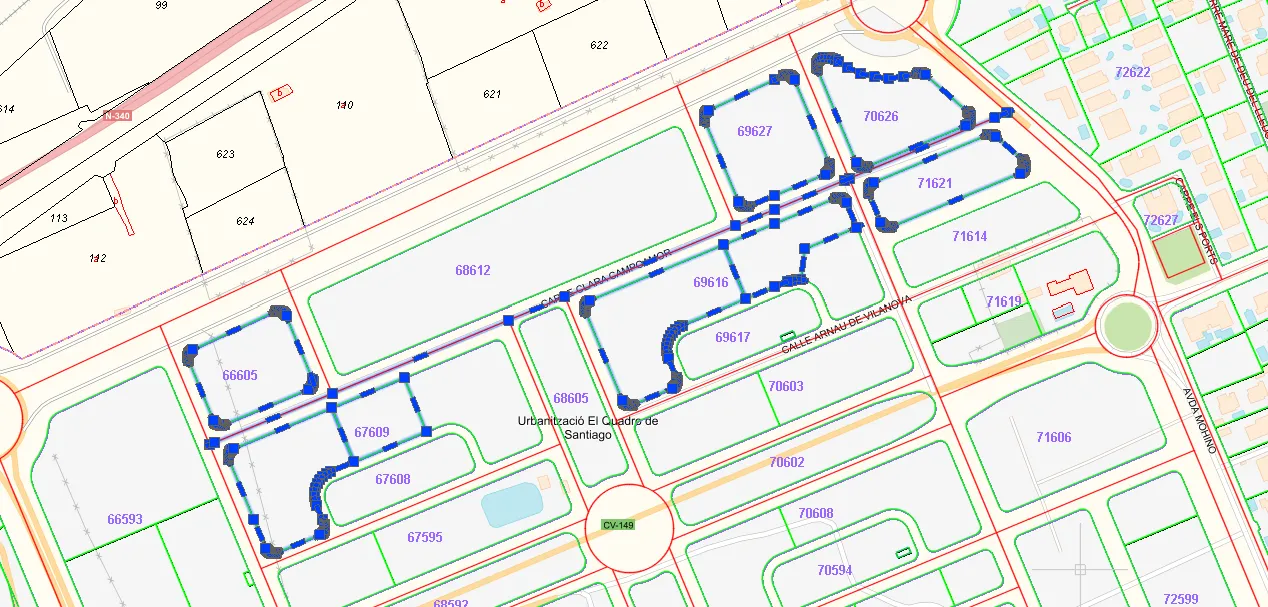
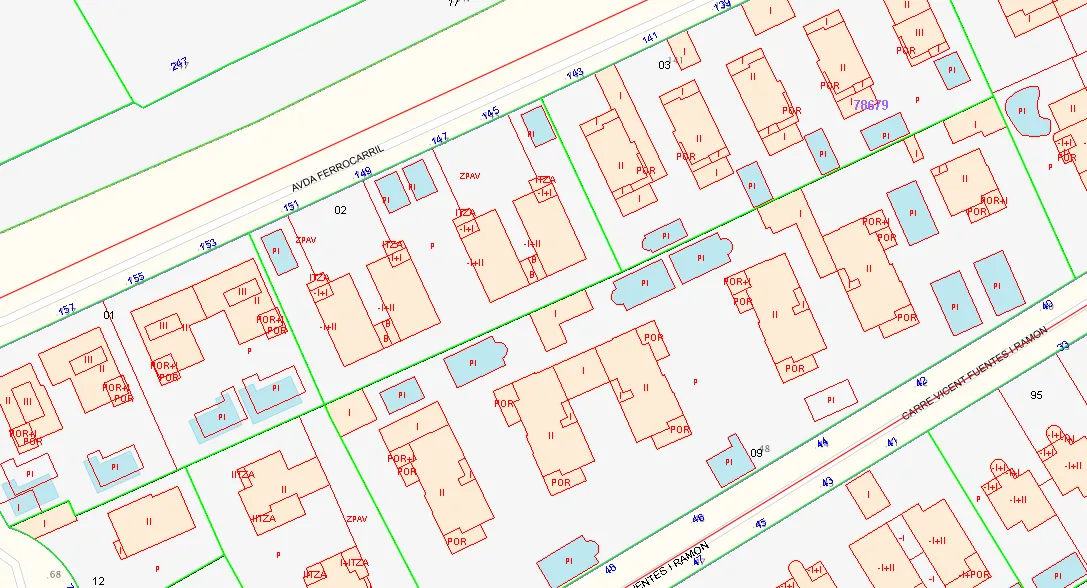
If we zoom in and turn on the WMS layers loaded earlier, we get the following result:
Imported entity information
Section titled “Imported entity information”SHP files also contain alphanumeric information associated with their entities. DWGExplorer keeps this information during the import, so you can query it later for specific elements, such as a street centerline or a parcel.
For example, if we select a newly imported parcel, the system shows the list of entities in the drawing and highlights the information for the selected entity:
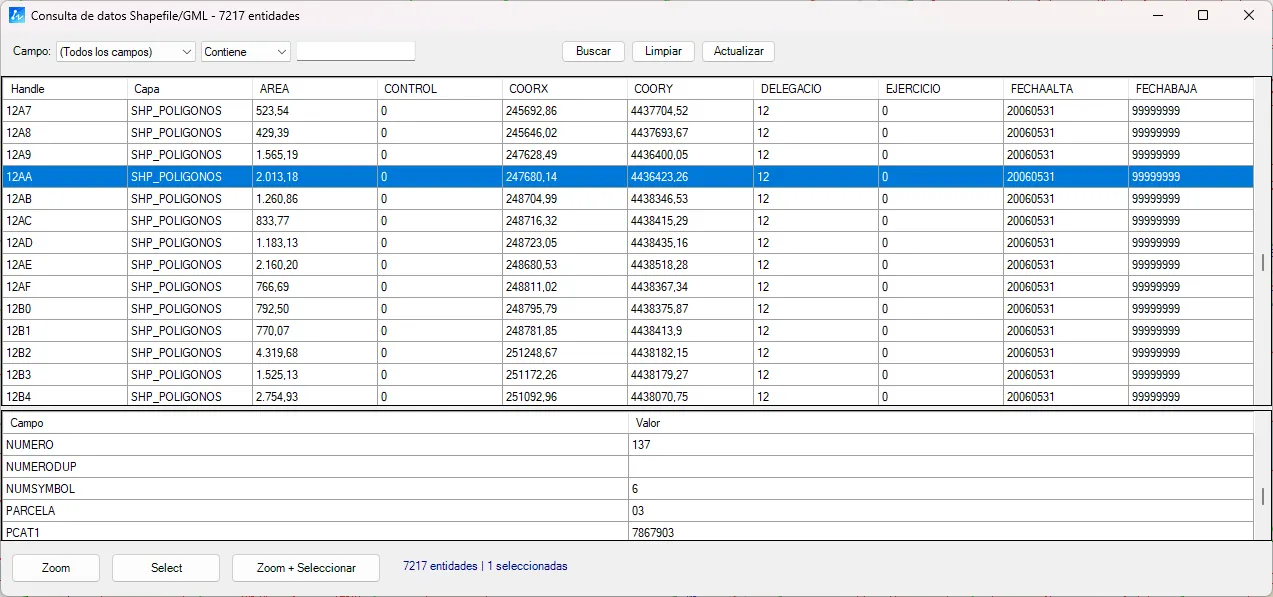
This information includes data such as the area, the cadastral reference and other attributes available in the SHP file.
Query imported entities
Section titled “Query imported entities”You can also query imported entities from the window itself. With the window open, select one or more entities in the list to zoom to them automatically in the drawing and leave them selected.
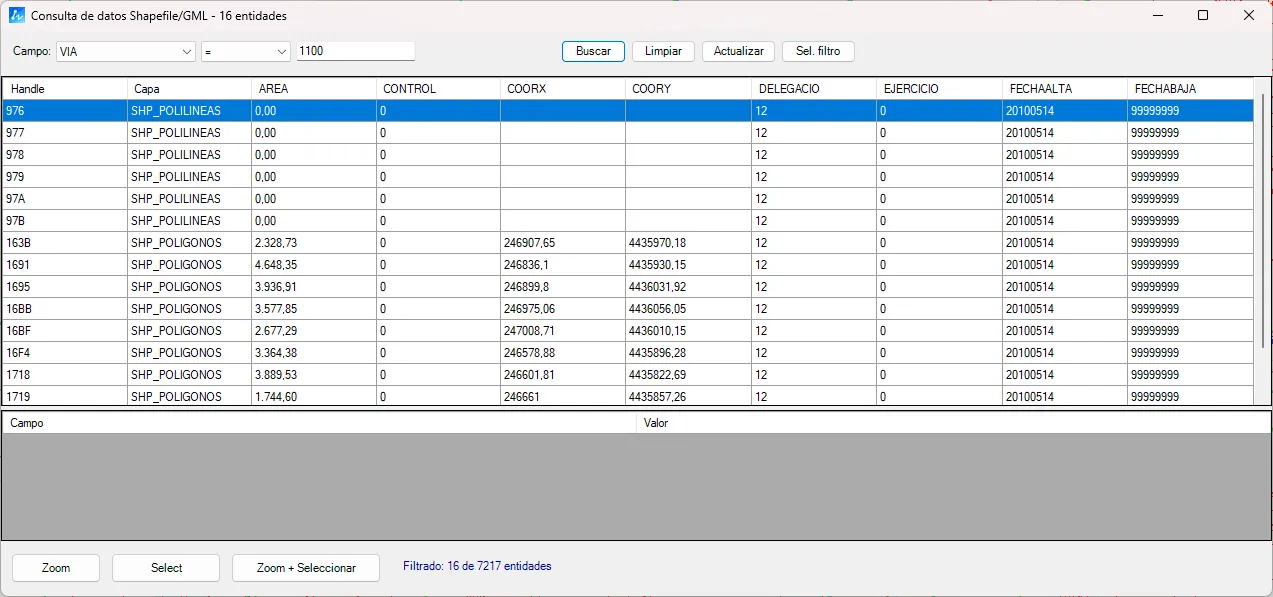
For example, if we use the filter at the top and set the VIA (street) field equal to the code 1100, the system returns 16 entities, as shown in the image:
Clicking the Zoom + Select button gives the following result in the active drawing: