Cadastre functions
DWGExplorer includes features that integrate with the information services of the Directorate General for the Cadastre (the Spanish Cadastre).
Specifically, it lets you look up information about the cadastral parcels shown in the drawing, using the map data obtained through the Cadastre WMS service as a reference.
From within DWGExplorer, you can also go straight to the official information for a parcel in the Cadastre e-Office, so you can check its data without first having to find the parcel manually on the Cadastre platform.
These functions are in the Catastro (Cadastre) panel:
Parcel information
Section titled “Parcel information”Starting from any plan or map displayed in DWGExplorer through the available WMS services —such as the Cadastre WMS, PNOA (National Aerial Orthophotography Plan) or other land information services— you can look up the cadastral information of a specific parcel directly.
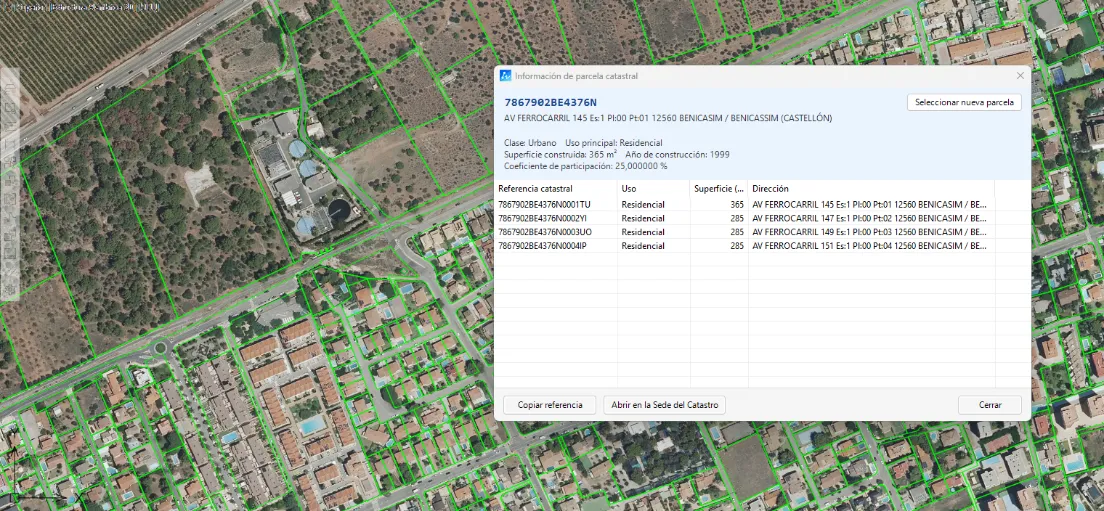
For example, the following case shows the parcels of a municipality with the PNOA orthophoto as the background map.
The Cadastral parcel information function (the Inf. Parcela button) asks you to select a point inside the parcel you want to look up. Using the coordinates of that point, the application automatically queries the Cadastre and shows the public information available for the selected parcel, as you can see in the following image.
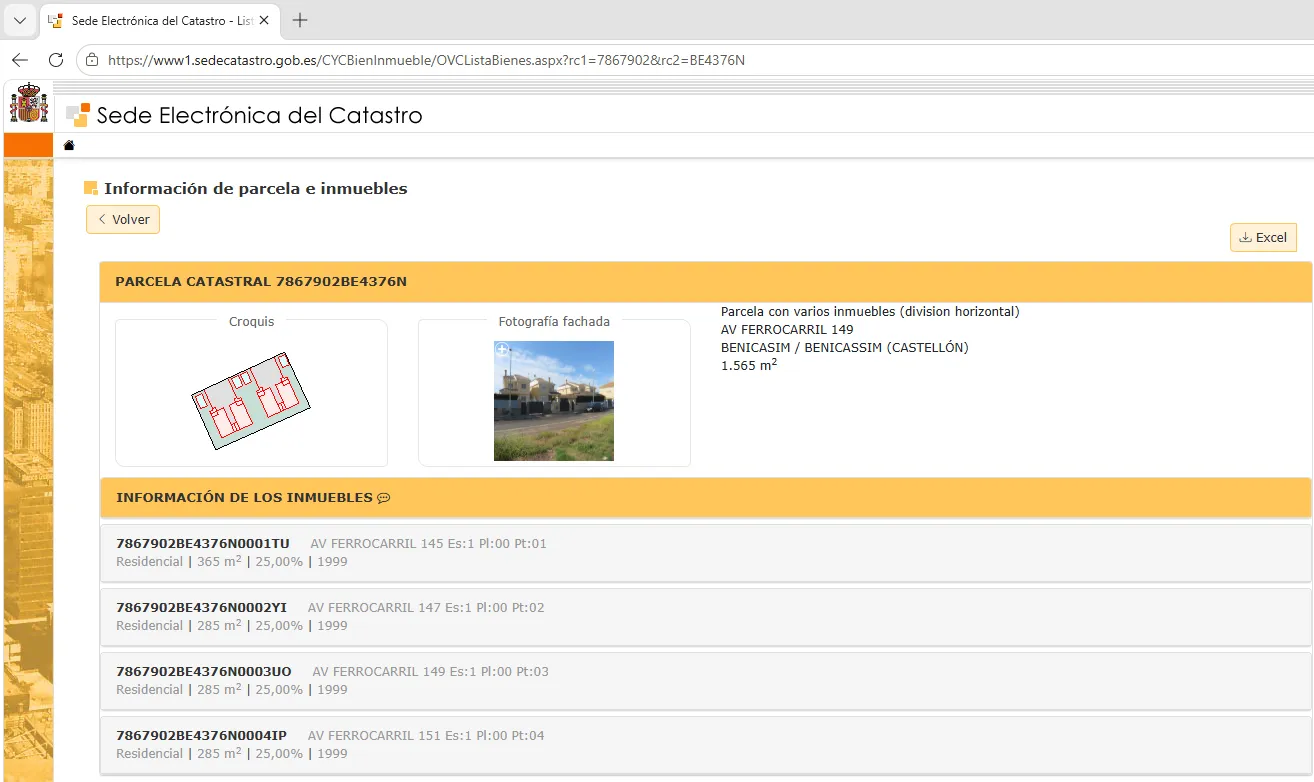
In addition, the “Open in Cadastre website” button opens the Cadastre e-Office in your browser, showing the information for that same parcel.
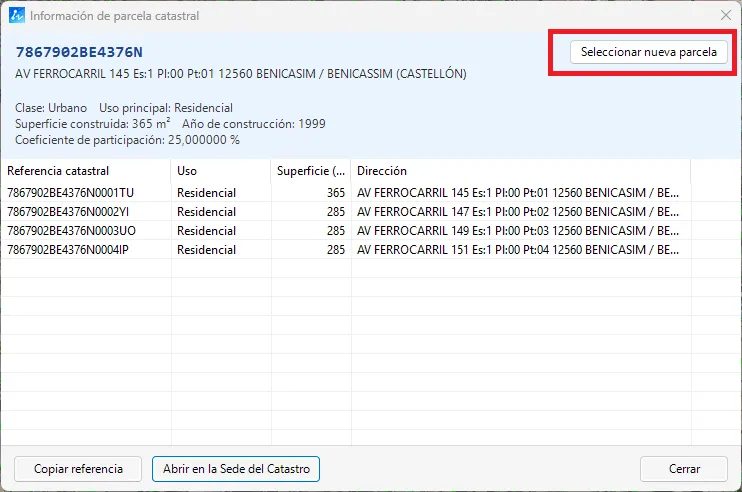
From the same window, you can also start a new selection with the “Select another parcel” button to look up any other parcel in the displayed area, one after another:
When you select another parcel, the window shows its information:
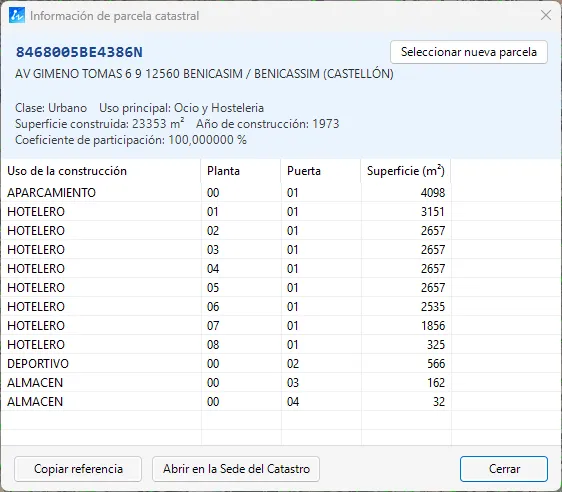
This makes looking up cadastral information especially easy: just select a point inside the parcel to get its public data. The parcel does not need to be drawn in ZWCAD beforehand, because the application uses the coordinates of the selected point to locate the parcel and query the Cadastre automatically.
Locate parcel
Section titled “Locate parcel”Another available function is Locate cadastral parcel (the Loc. Parcela button), which finds a specific parcel from its cadastral reference and places it correctly in the current drawing.
If the parcel is not yet in the drawing, the function lets you look up its cadastral information and also import and draw its geometry automatically.
This is especially useful when you start from a new drawing. For example, if you know a parcel’s cadastral reference, you can enter it directly in the window:
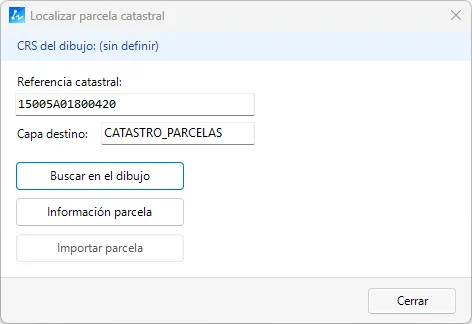
When you click “Search in drawing” in a new drawing that does not yet have a coordinate system, the program analyzes the available information and shows the following message:
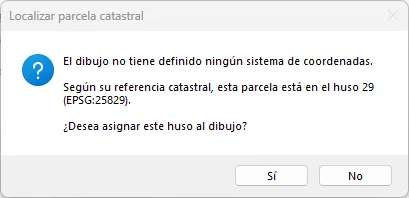
From the parcel data, the application identifies the UTM zone where the parcel is located and proposes using that same coordinate system for the drawing. This ensures the parcel can later be added in its real position with the correct coordinates.
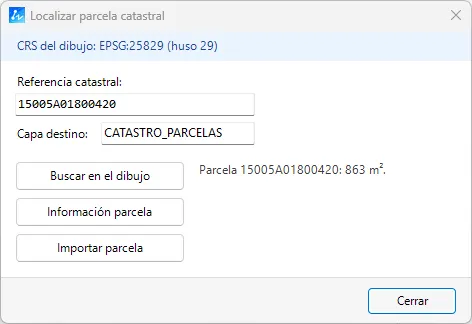
The window also shows additional information about the parcel, such as its area in square meters.
With the “Parcel information” button, the application queries the Cadastre and shows the public information available for the cadastral reference entered:
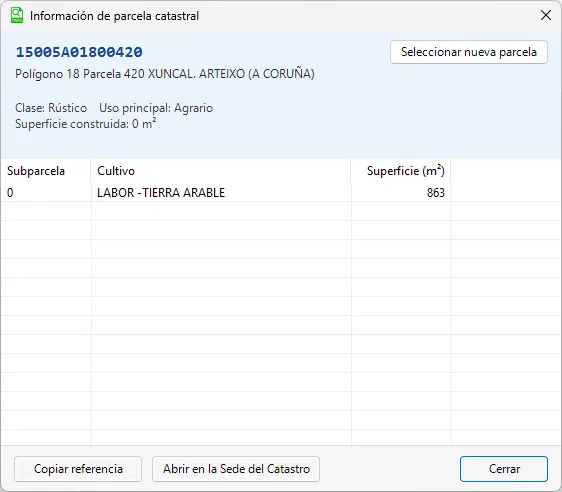
From this same window, you can also go directly to the Cadastre e-Office to see all the information available for the parcel.
Besides looking up its data, the “Import parcel” button retrieves the parcel geometry automatically and draws its outline in ZWCAD, placing it directly at its correct geographic coordinates.
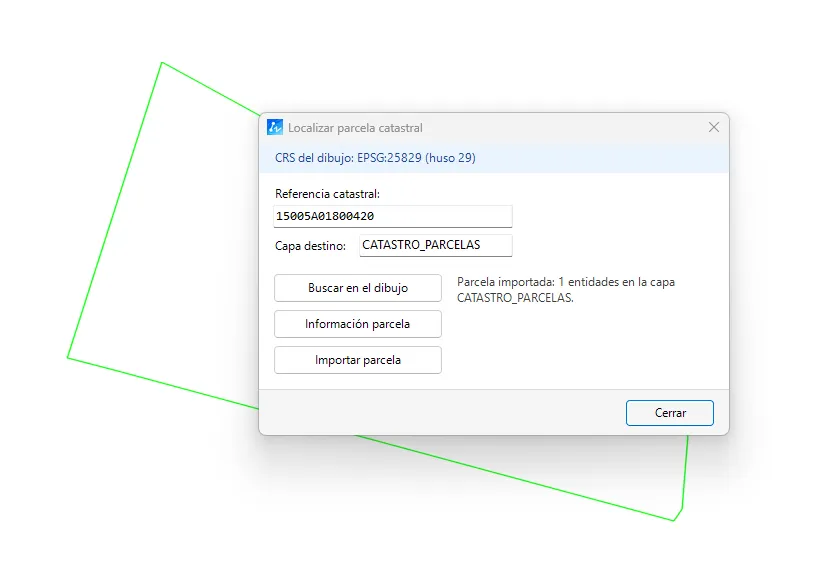
The window stays open throughout the process, so you can enter new cadastral references one after another and keep adding parcels to the same drawing without restarting the function.
Once the parcels are imported, you can turn on the Cadastre WMS service, for example, to display the full cadastral map of the area and check the position of the added parcels relative to their surroundings.
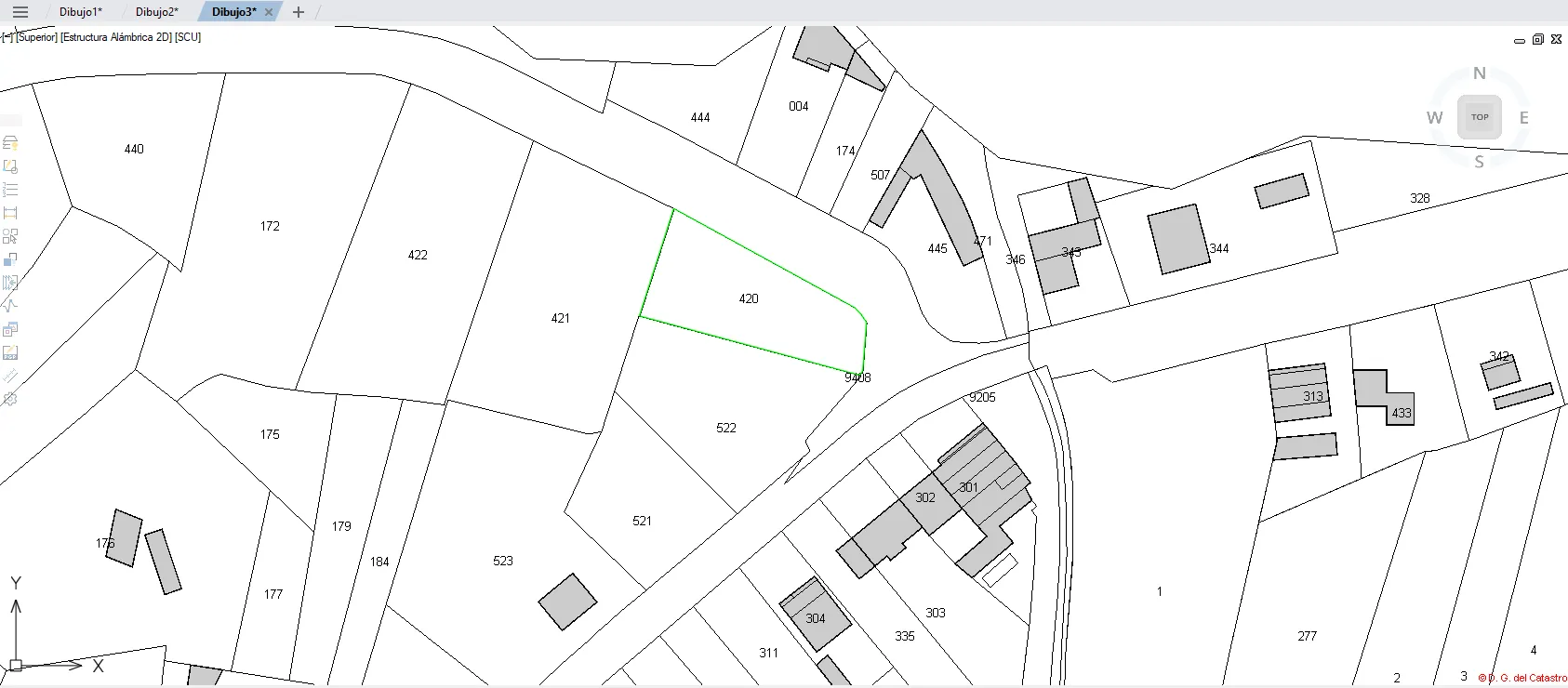
Together, the Cadastral parcel information and Locate cadastral parcel functions give DWGExplorer a particularly useful integration with the Cadastre’s public information. Combined, they let you look up, locate and add parcels directly from DWGExplorer, reducing manual steps and making work with land and cadastral information faster and more efficient.